Done re-adding Twinkly every season?
Upgrade to a permanent GOULY system
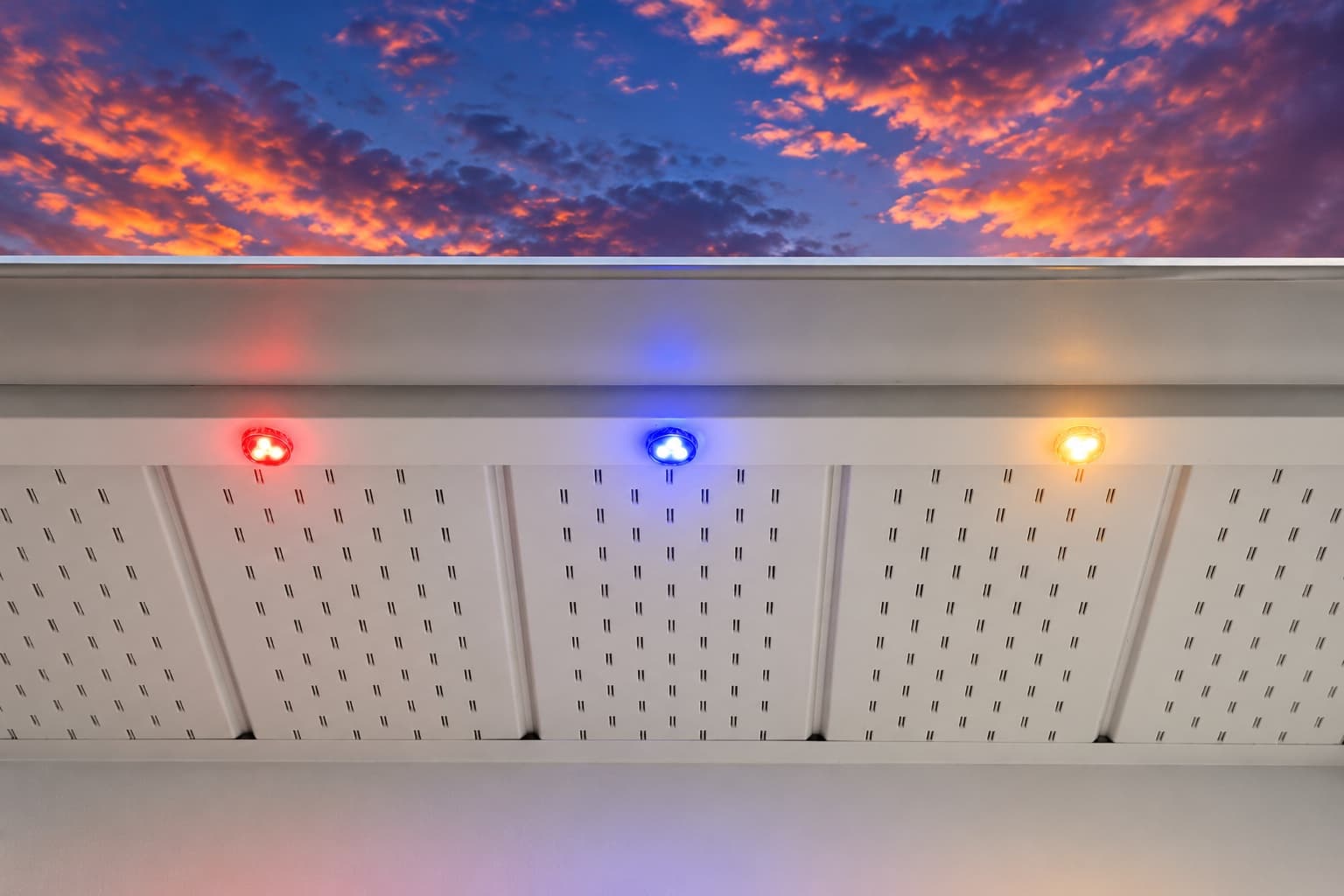
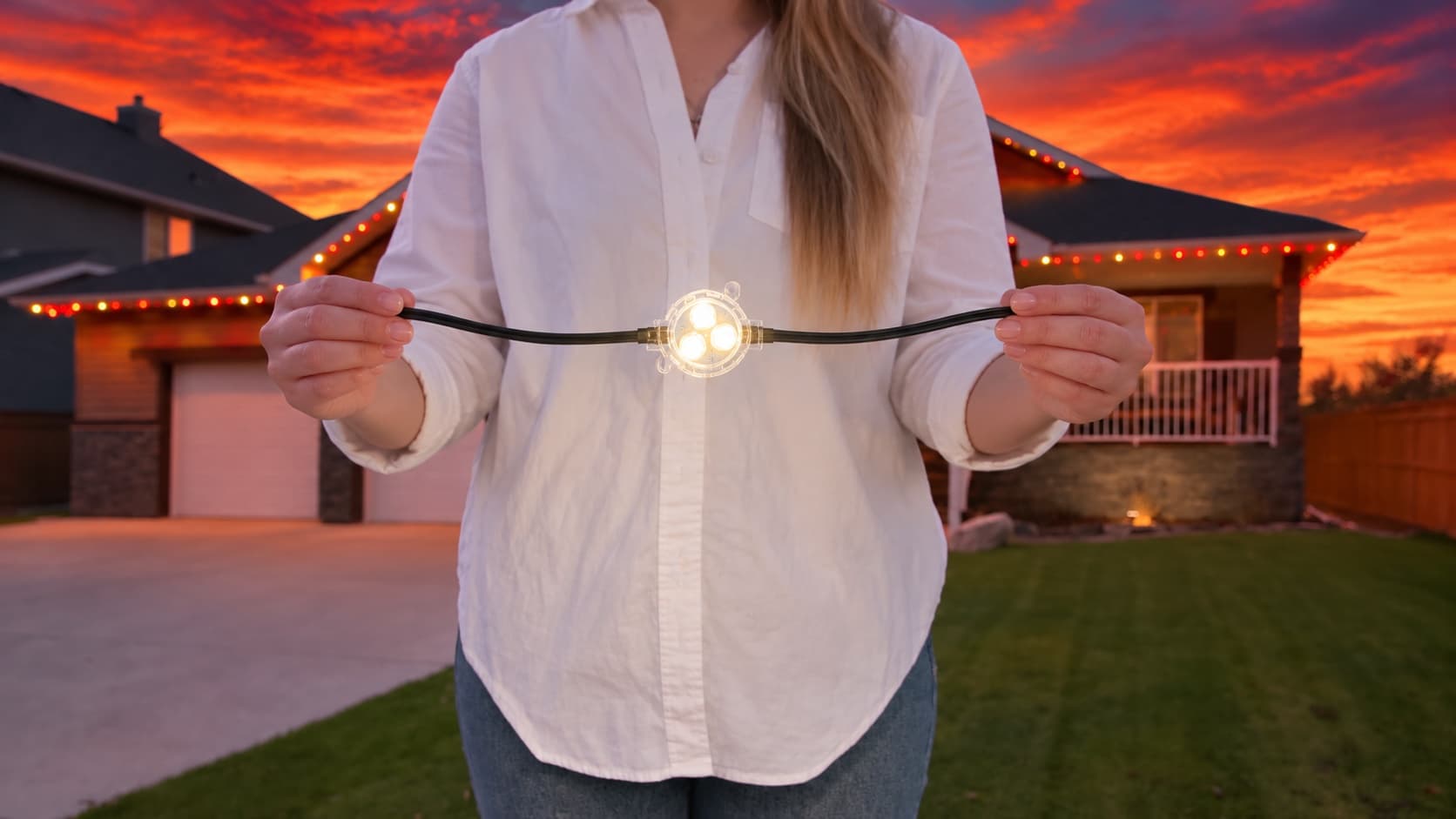
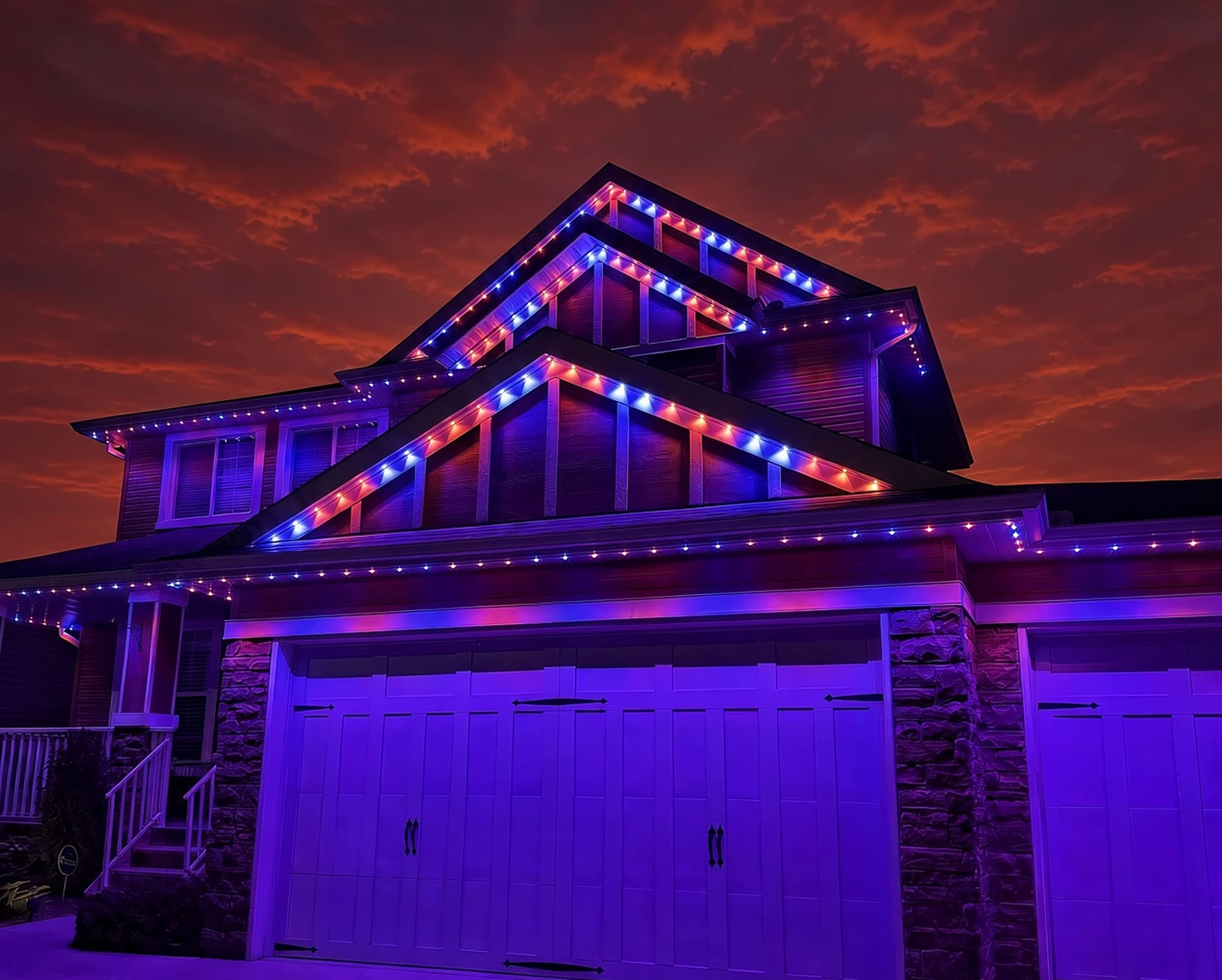
We can assess what you have now, or replace it with a professionally installed GOULY Gen 3 system on one app with 1,000+ designs.
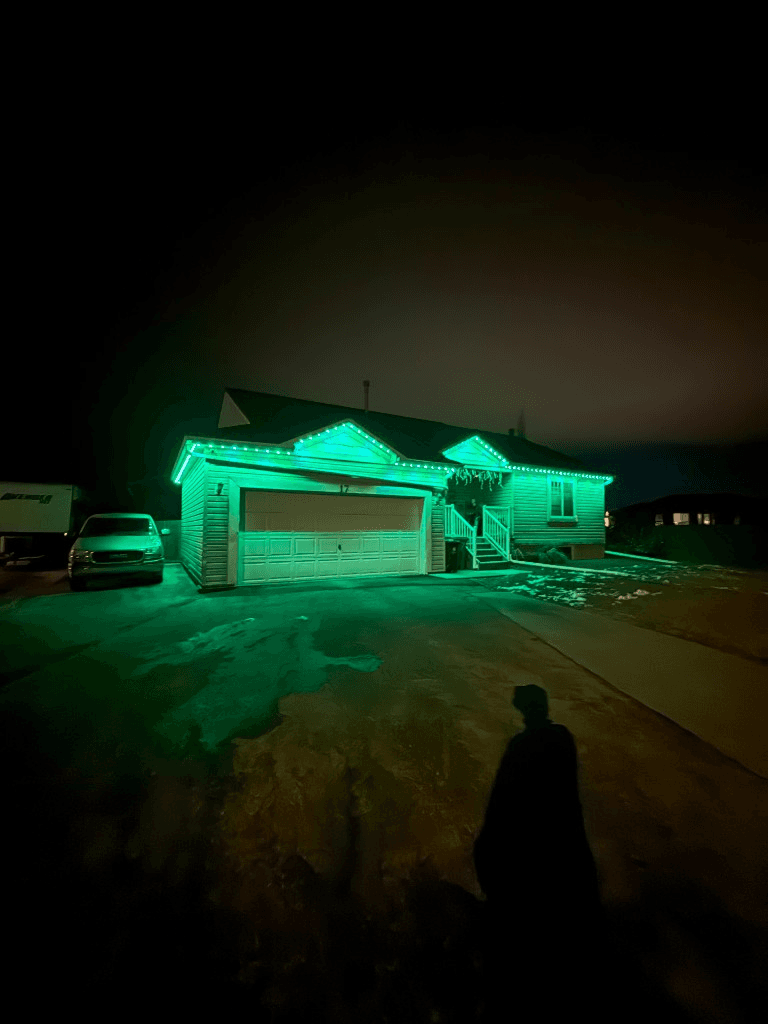
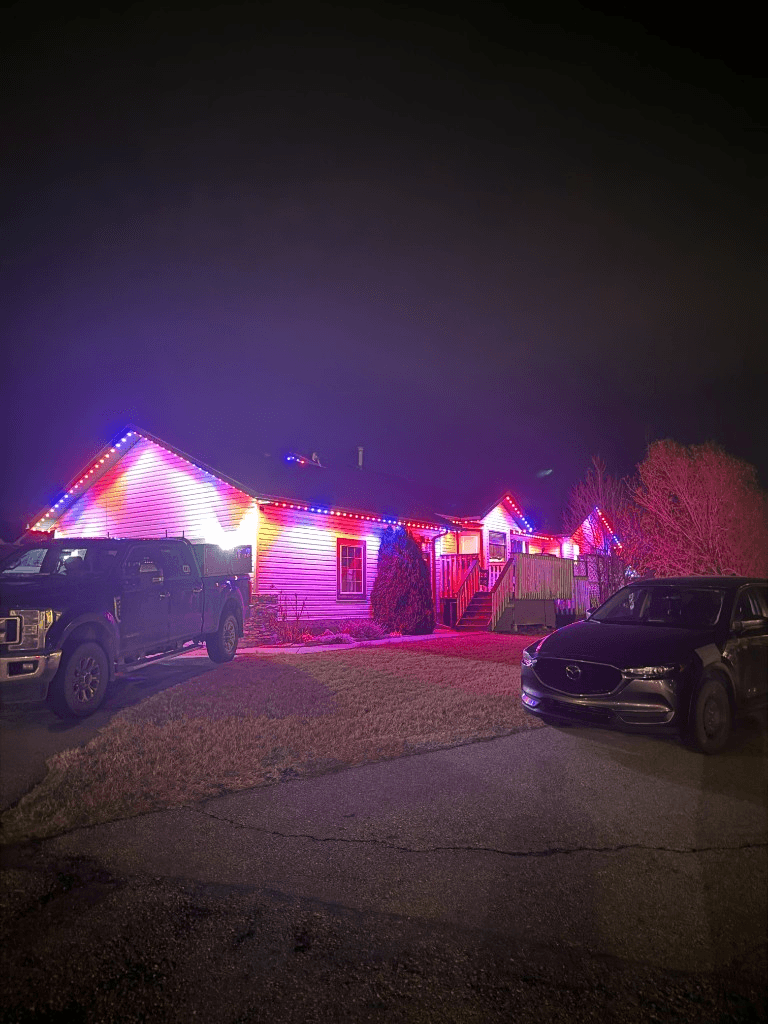
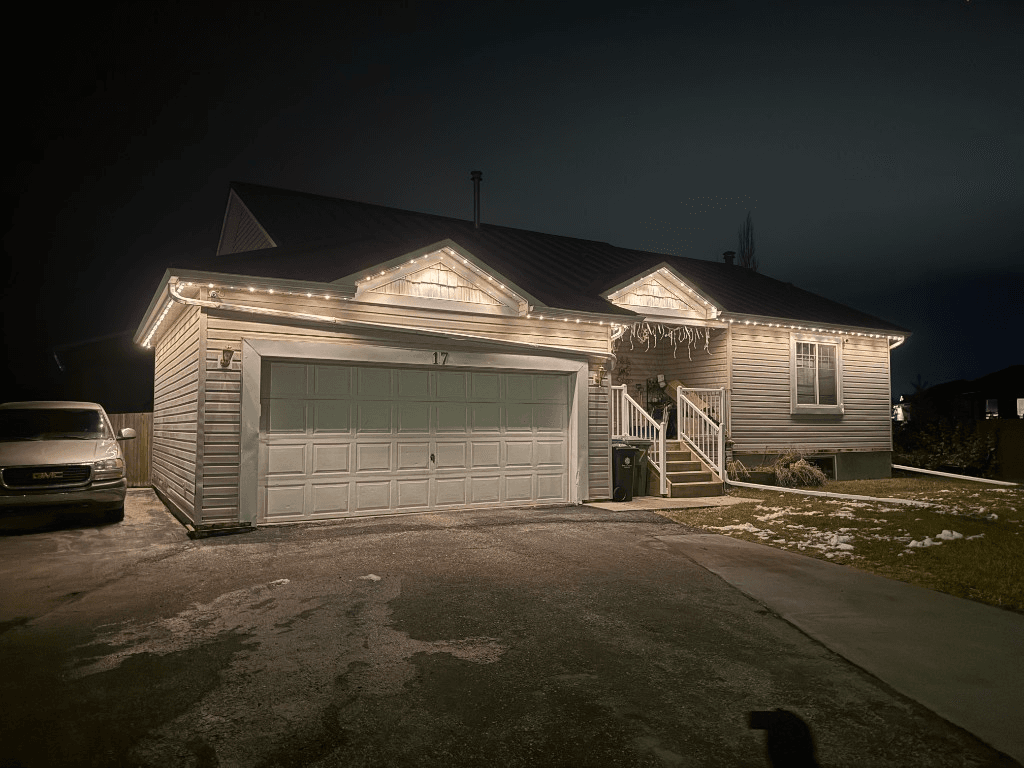
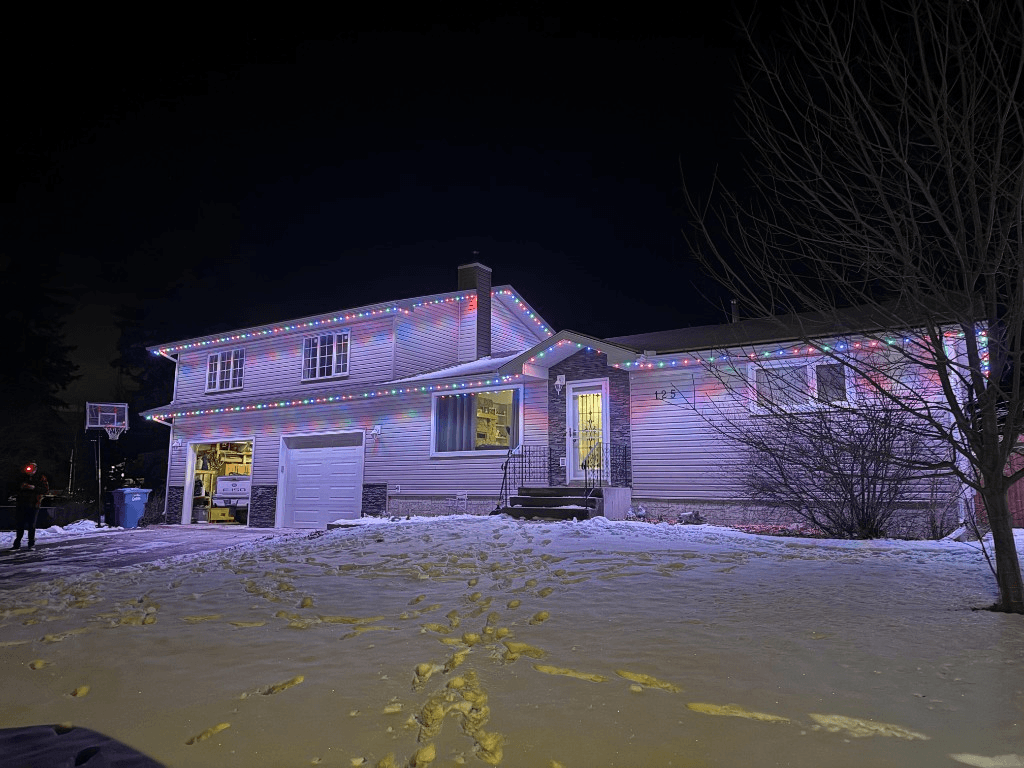
 From our gallery
You open the Twinkly app and your lights show as offline. Or they are flashing blue and red, setup finished but the lights ignore every command, or the app froze halfway through mapping your layout. Twinkly lights join your home Wi-Fi through a small controller, and most app trouble comes back to that Wi-Fi connection, your router settings or a phone permission.
This guide covers the fixes in the order most likely to work, based on the guidance in Twinkly's help centre. Where we could not confirm an exact step, we keep it general and point you back to Twinkly's own article for your model.
Tired of fighting the app?
Get a free mockup of your house lit up
Green dot vs grey dot: what "offline" means in the Twinkly app
Twinkly's help centre explains that a green dot next to your device means it is online and a grey dot means the app cannot reach it. Grey does not mean the lights are broken. It usually means the controller is not on your Wi-Fi, or your phone is on a different network from the lights.
Quick checklist before you start
- Check power at the outlet. Exterior GFCI outlets trip after rain or snow melt.
- Make sure your phone is on your home Wi-Fi, not mobile data or a guest network.
- Update the Twinkly app.
- Fully close the app and reopen it.
- Make sure your router is broadcasting a 2.4 GHz network.
Twinkly needs 2.4 GHz (split your bands)
Why it happens: Twinkly's router guidance says the lights connect on 2.4 GHz only. Many newer routers broadcast 2.4 GHz and 5 GHz under one name, and the controller can have trouble with that.
Fixes, in order:
- If your router lets you, give the 2.4 GHz band its own name and connect the lights to that. Our 2.4 GHz setup guide explains how.
- If you cannot split the bands, Twinkly's help centre suggests turning 5 GHz off temporarily while you set up the lights.
Hidden and guest networks don't work
Twinkly's router guidance says hidden networks and guest networks are not supported. If your Wi-Fi name is hidden, make it visible during setup. If you were connecting the lights to a guest network, connect them to your main network instead.
WPA2-AES vs WPA3 router security
Twinkly's router guidance lists WPA2-PSK with AES as the security setting to use. We could not confirm whether WPA3-only routers are a problem, but if your router is set to WPA3 only and the lights will not join, switching to WPA2/WPA3 mixed mode or WPA2-AES is worth trying.
Flashing blue and red: new router or password, re-add over Bluetooth
Why it happens: Twinkly's help centre says flashing blue and red means the lights cannot join the Wi-Fi they were set up on. This usually happens after a new router, a new internet provider or a Wi-Fi password change.
Fix: set the lights up on your network again using the app's Bluetooth setup, as Twinkly's help centre describes for devices that were connected in the past. Stand close to the controller while you do it.
Phone and lights on different networks
If setup worked but the lights will not respond, Twinkly's help centre points to the phone and the lights being on different networks. Check that your phone is on the same Wi-Fi as the lights, not a 5 GHz name, a guest network or an extender with a different name. Then run the network setup again from the app.
Local network permission on iPhone
The Twinkly app needs permission to find devices on your local network. On iPhone, open Settings, find Twinkly and make sure Local Network is turned on. If it was off, turn it on and reopen the app.
App frozen: fully close and reopen
If the app is stuck, Twinkly's help centre says to fully close it and reopen it. Swipe it away from your recent apps rather than just switching away. If the lights are still stuck after that, a reset is the next step, covered below.
Twinkly's direct network disappeared (normal)
During setup, Twinkly lights can broadcast their own Wi-Fi network. Twinkly's help centre explains that this direct network stops showing once the lights are connected to your router. If you cannot see it any more, that is normal and not a fault.
Extenders, mesh and weak signal at the roofline
Outdoor lights are often at the edge of your Wi-Fi. If the lights keep dropping offline:
- Check the signal where the controller sits. Brick, stucco and garage walls all cut it down.
- Wi-Fi extenders and some mesh systems can confuse small controllers, especially if they use a different network name.
- Unplugging the lights for about 10 seconds forces the controller to reconnect, which users report helps after router changes.
It also helps to know that Twinkly's app talks to the lights over your local network, while smart home links like Alexa, Google or Homey go through Twinkly's cloud. If a smart home app shows the lights offline but the Twinkly app still controls them, the problem is on the cloud side, not your lights.
How to reset Twinkly (Gen I/II/Plus vs PRO)
The reset is different depending on your Twinkly model, so check which one you have first.
- Gen I, Gen II and Plus: Twinkly's help centre describes unplugging the lights, then holding the button on the controller while you plug them back in, until the lights go steady red.
- Twinkly PRO: the procedure is different. Follow Twinkly's own reset article for PRO controllers.
A reset wipes your saved layouts and settings, so you will need to set up and map the lights again afterwards. Try every Wi-Fi fix above first.
Local install and support
Number One Lights installs and supports GOULY permanent lights in Calgary, Chestermere and Strathmore
You get a local warranty and local service from the team that put your lights up. Start with a free mockup of your house lit up.
Getting support
Twinkly has a help centre with articles for each model and a support contact. Go in with your model, what colour the controller lights are showing, your router type and what you have already tried.
Twinkly for Christmas vs permanent lights year-round
Twinkly lights are popular for Christmas trees and seasonal displays that go up and come down each year. If you have router-proofed everything, reset the controller and it still drops off every few weeks, the problem is usually not a setting you missed. And if what you really want is your roofline lit every night of the year without going up a ladder, a permanent system is built for that job.
| Feature | Many Competitors | GOULY Gen 3 |
|---|---|---|
| App | Twinkly app | GOULY app with 1,000+ designs |
| Mounting | Depends on your setup | Aluminum track fastened to your fascia |
| Season | Often put up and taken down each year | Stays up year-round |
| Cold rating | Check your hardware | Rated -40°C to +50°C |
| Install | Usually do it yourself | Professionally installed |
| Support | Twinkly help centre | Local team in Calgary with a real phone number |
How Number One Lights can help
We install permanent lights across Calgary, Chestermere, Strathmore and area. If you are done re-adding seasonal lights every year, we install the GOULY Gen 3 system:
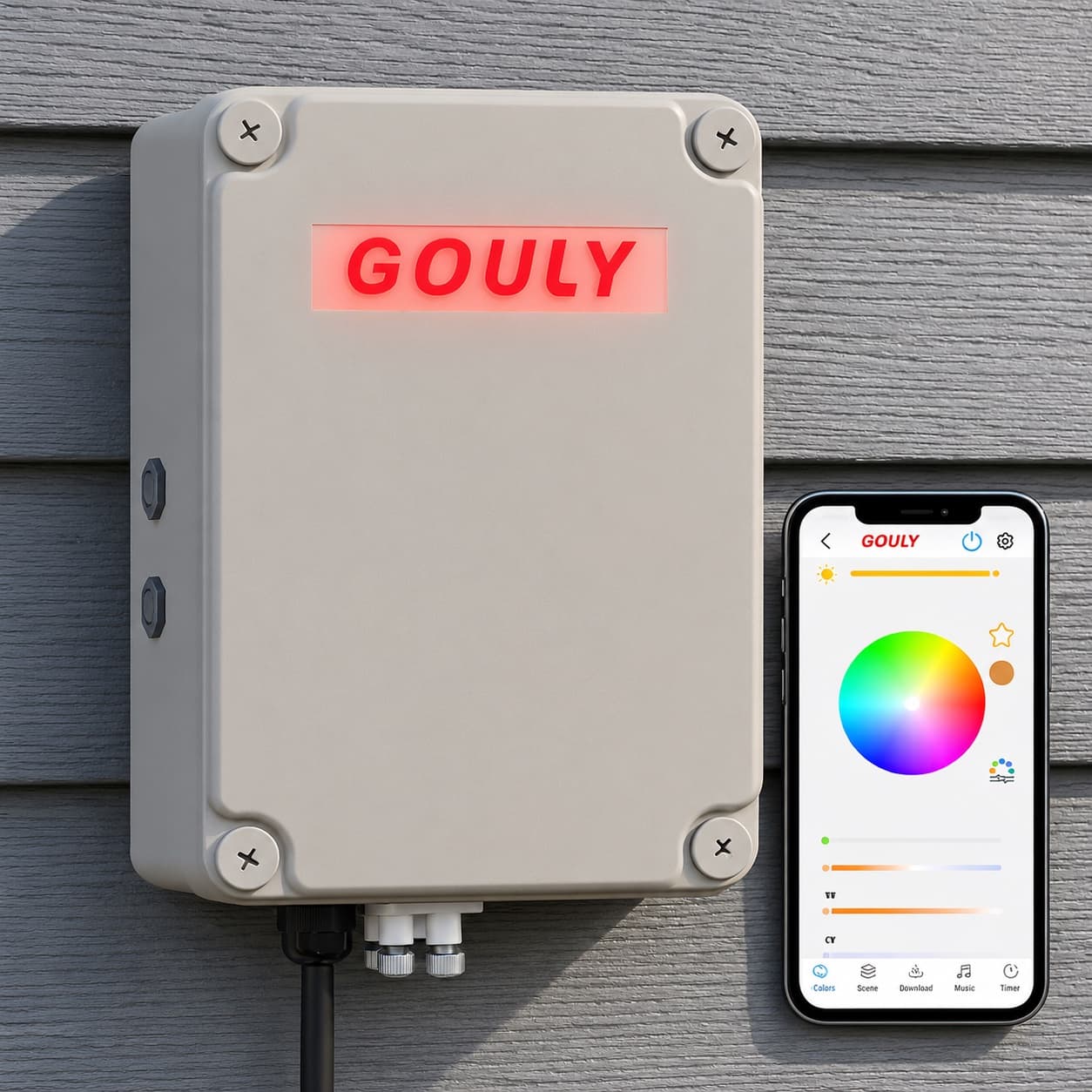
- Controlled from the GOULY app, with 1,000+ designs and holiday schedules.
- Mounted in aluminum track, fastened to your fascia. See the system.
- Rated for Alberta cold, -40°C to +50°C.
- Professionally installed, with a Transferable Warranty plus workmanship coverage.
What to do next
If the fix was small, a tripped outlet, a 5 GHz network or a new router, the steps above should have your lights back online tonight.
If you want lights that stay up and stay connected all year, get a free quote and a team member will look at your home virtually and send a clear quote. No pressure, no surprises.
Done troubleshooting?
See your house lit up with a free mockup
We design, install and support GOULY permanent lights in Calgary, Chestermere and Strathmore. Get your free mockup and quote, or text or call us with any question.
Frequently asked questions
Why does my Twinkly say offline?
A grey dot in the Twinkly app means the app cannot reach the lights. Usually the controller is not on your Wi-Fi, or your phone is on a different network from the lights. Check the outlet, put your phone on the same 2.4 GHz network and run the network setup again.
Why are my Twinkly lights flashing red and blue?
Twinkly's help centre says flashing blue and red means the lights cannot join the Wi-Fi they were set up on, usually after a new router or password change. Set them up on your network again using the app's Bluetooth setup.
Does Twinkly work on 5 GHz Wi-Fi?
No. Twinkly's router guidance says the lights connect on 2.4 GHz only. Give the 2.4 GHz band its own name, or turn 5 GHz off temporarily during setup. Hidden and guest networks are not supported either.
How do I reset Twinkly lights?
It depends on the model. For Gen I, Gen II and Plus, Twinkly describes unplugging the lights and holding the controller button while plugging back in until the lights go steady red. PRO controllers use a different procedure in Twinkly's PRO reset article. A reset wipes your layouts.
Why isn't Twinkly working with Homey, Alexa or Google?
Those links go through Twinkly's cloud, while the Twinkly app talks to the lights on your local network. If the Twinkly app still works, the problem is on the cloud or integration side. Make sure the lights work in the Twinkly app first, then relink the integration.
How do I connect Twinkly to new Wi-Fi?
After a new router or password, the lights flash blue and red because they cannot find the old network. Use the app's Bluetooth setup to add them to the new network, standing close to the controller, on a visible 2.4 GHz network with WPA2-AES security.
Questions before you book?
Visit our FAQ page
Get quick answers on Gen 3 Lighting, pricing, install timelines, app setup, warranty, and what to expect on install day.