Done re-pairing duoCo strips?
Upgrade to a permanent GOULY system
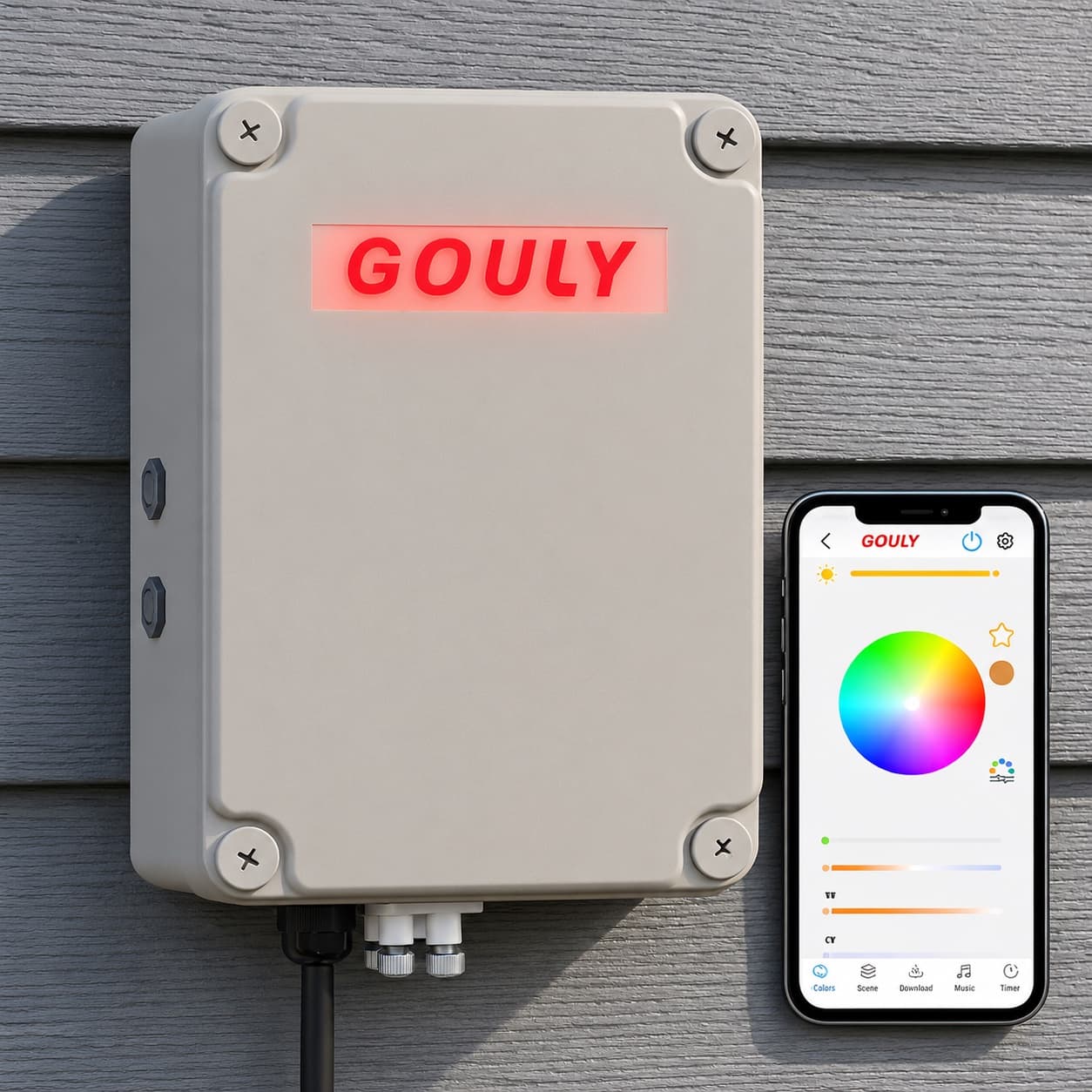
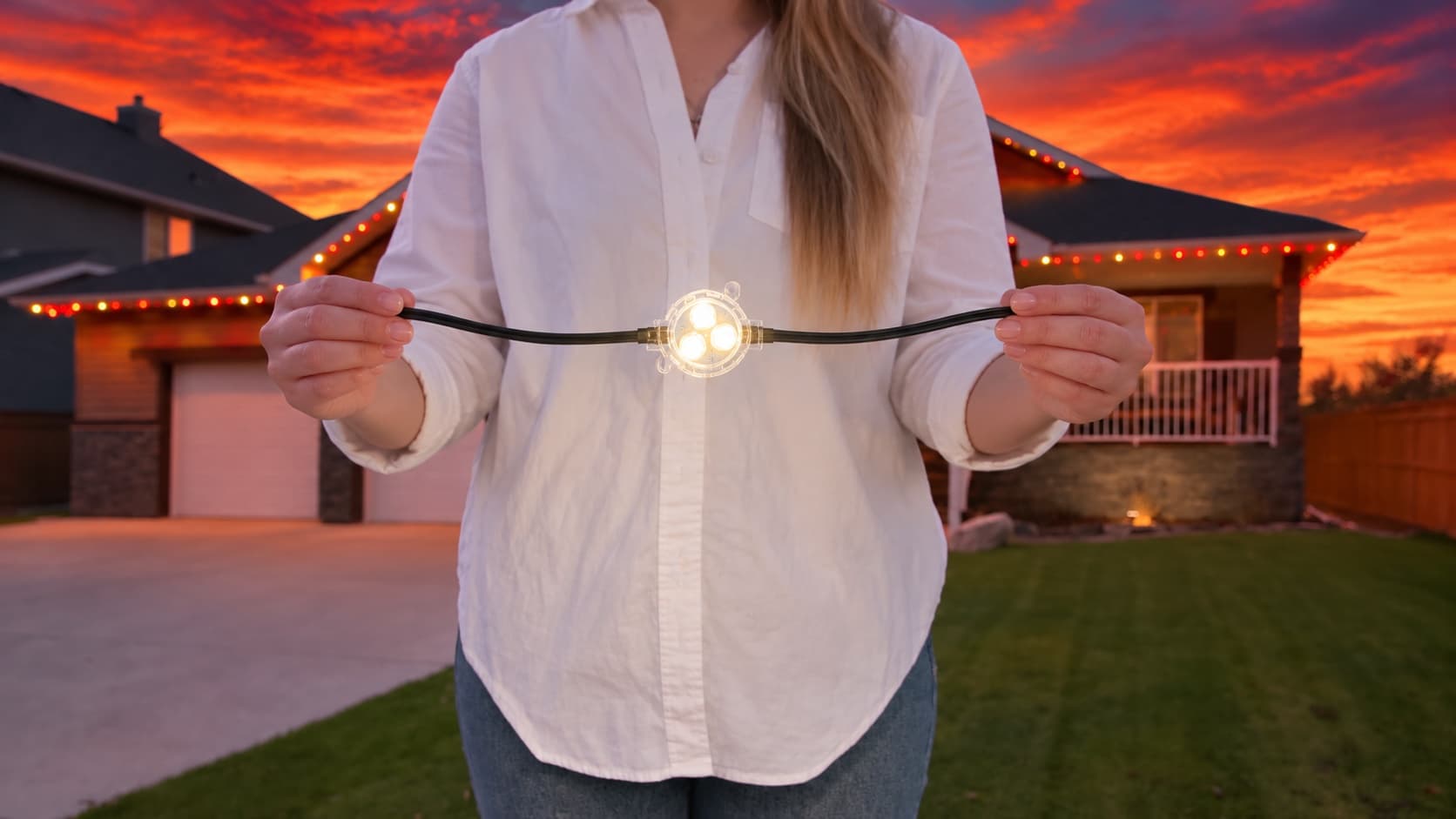
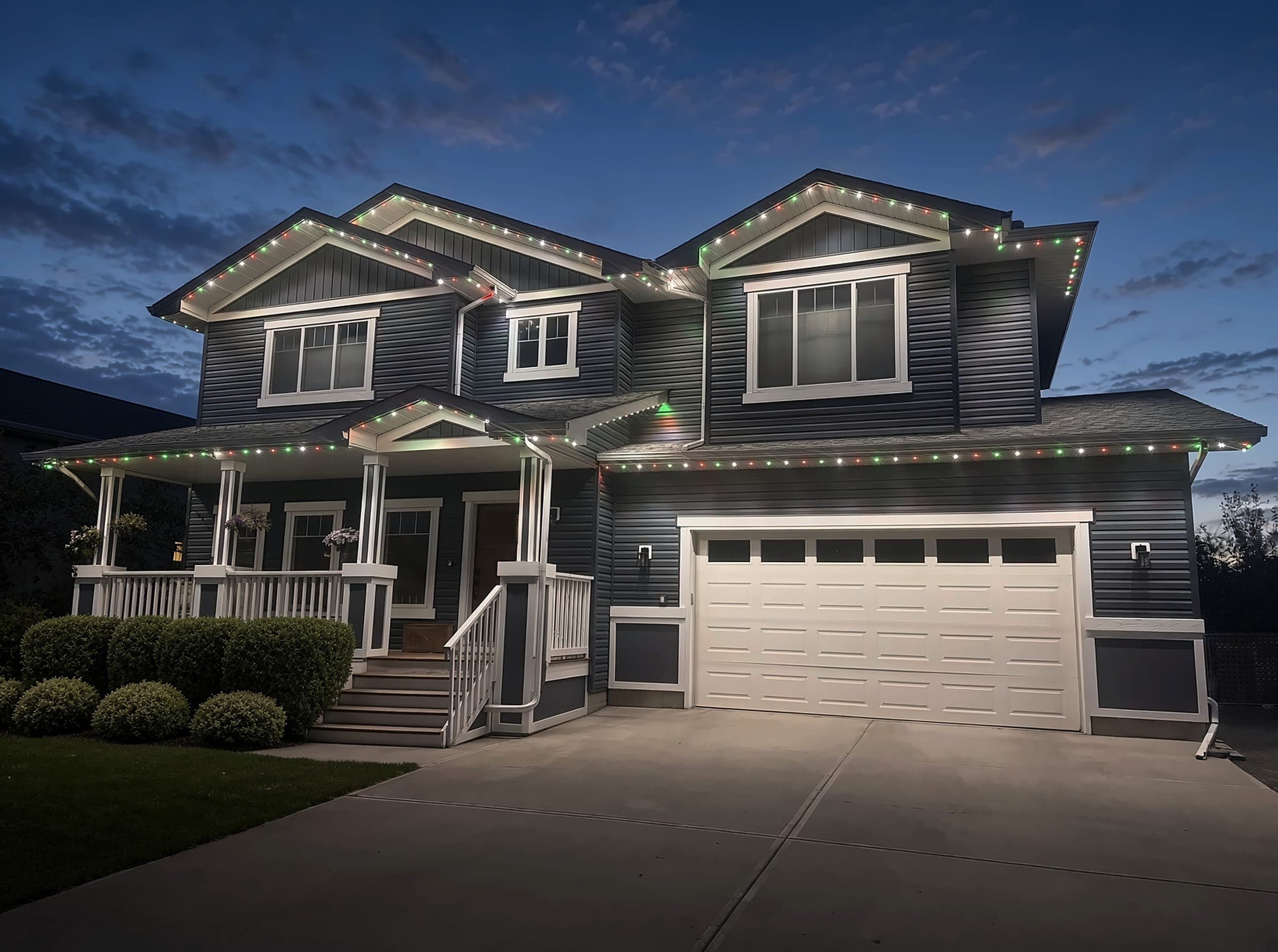
We can assess what you have now, or replace it with a professionally installed GOULY Gen 3 system on one app with 1,000+ designs.
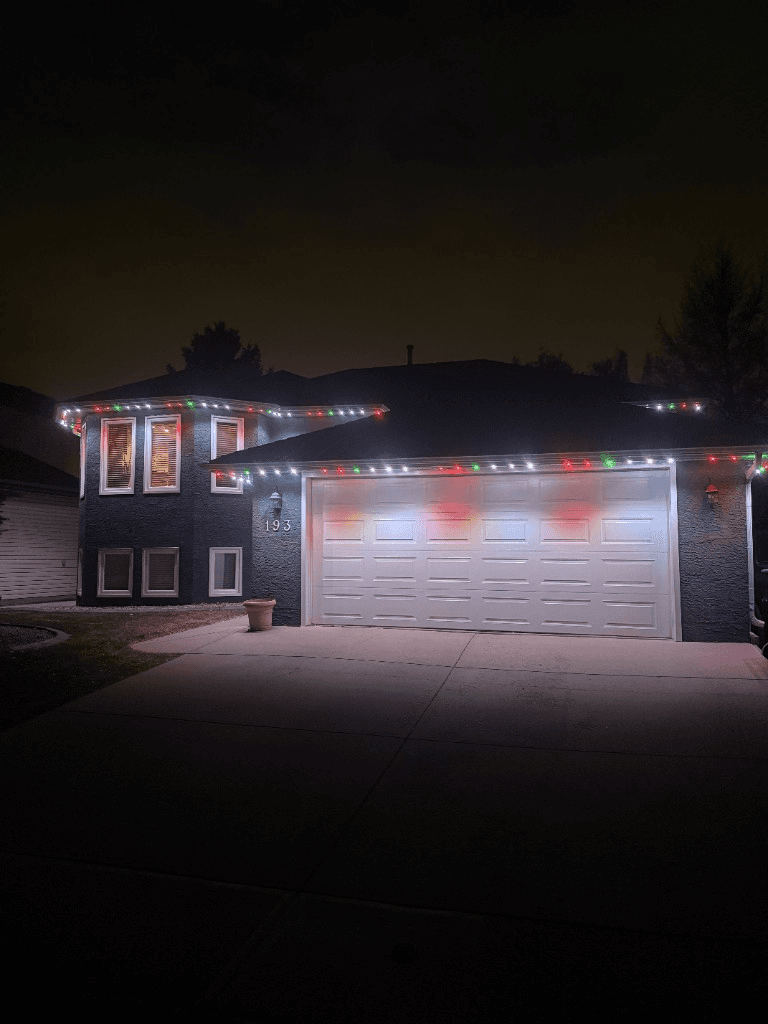
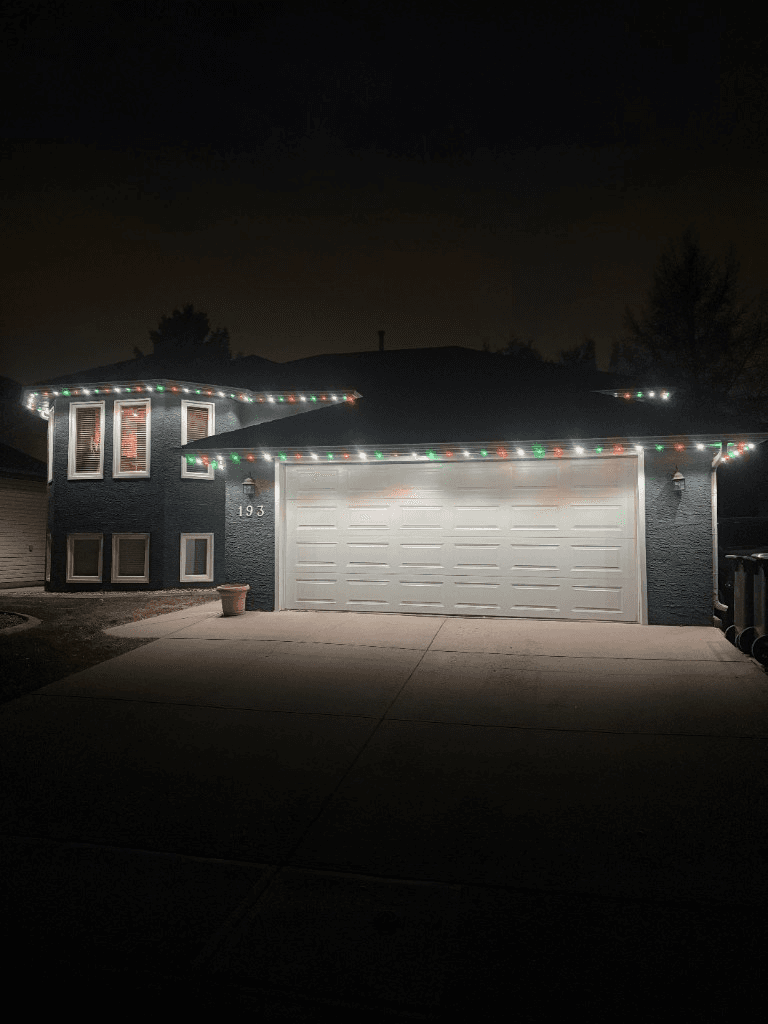
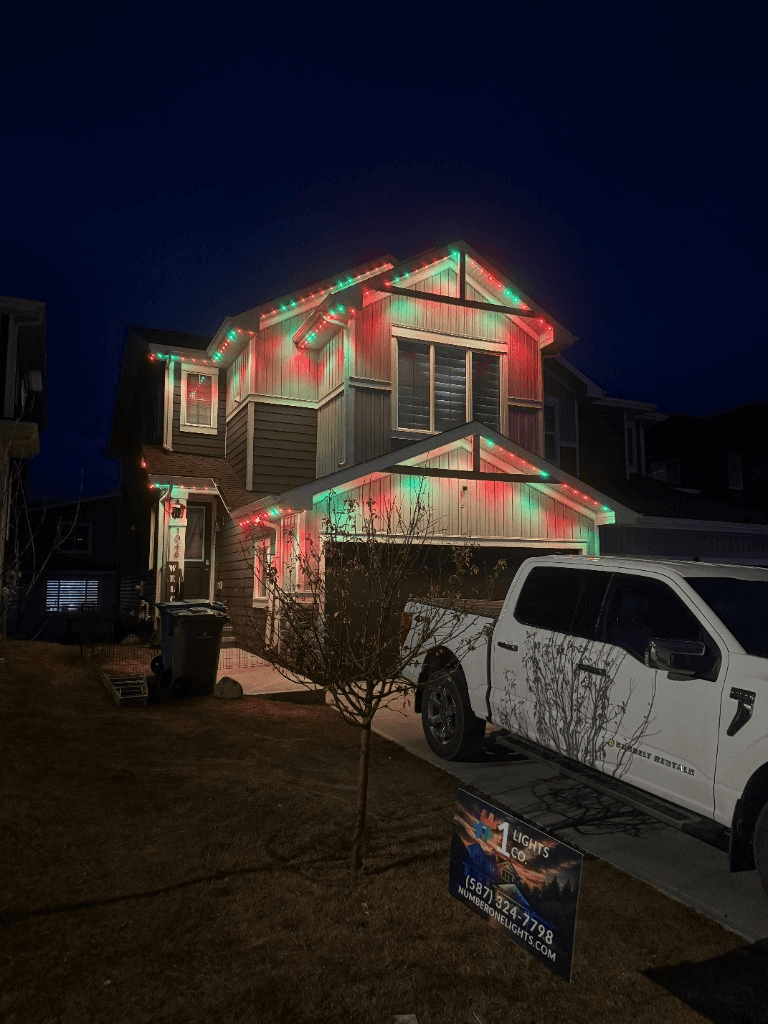
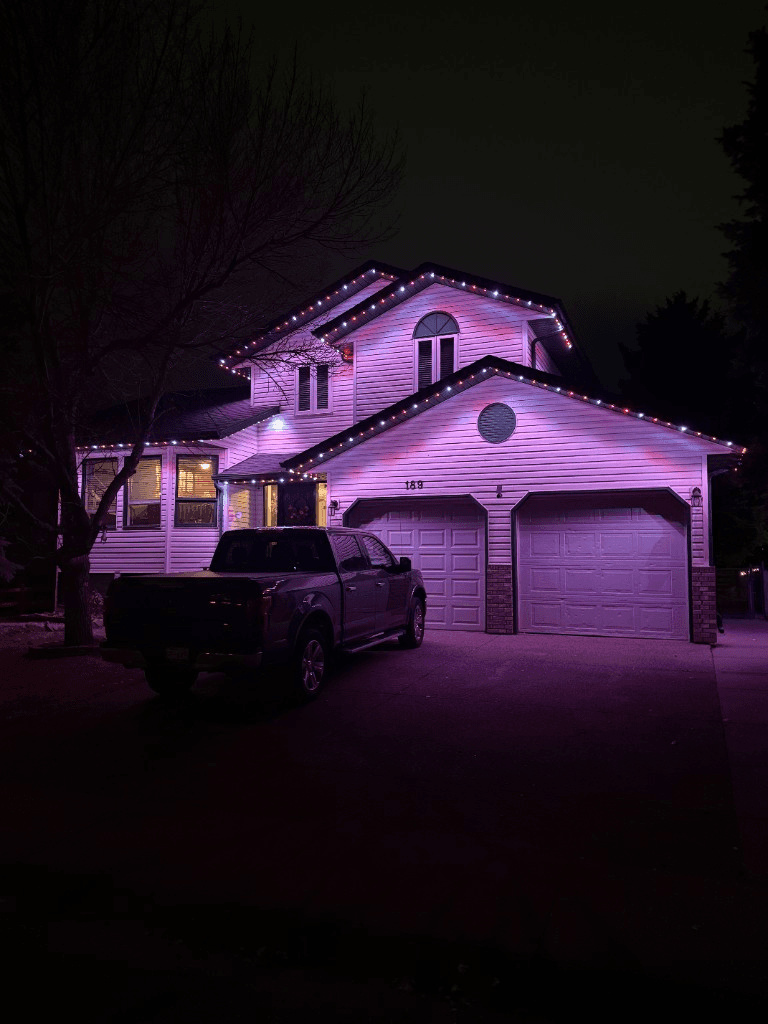
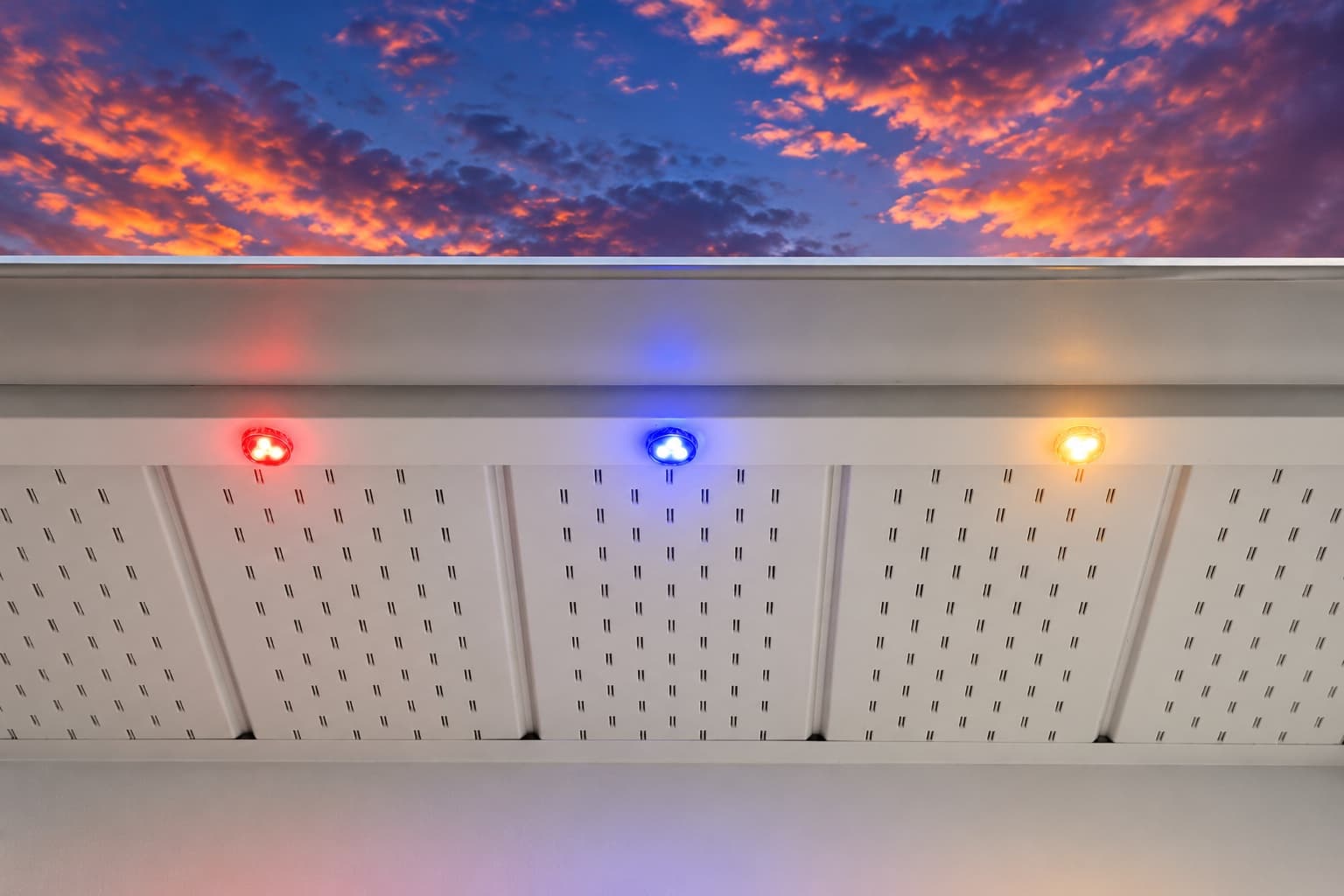
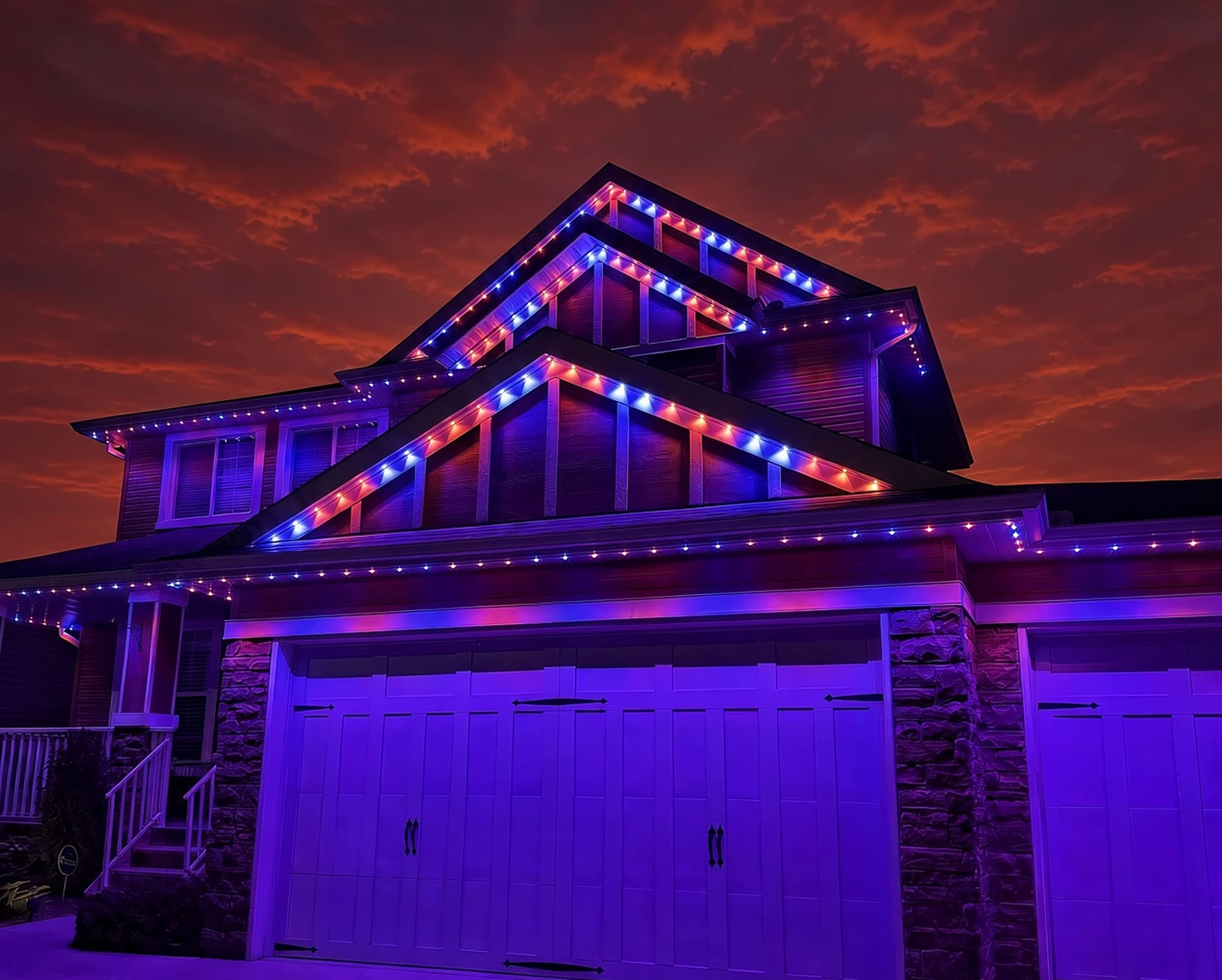
 From our gallery
You open the duoCo Strip app and your LED strip is nowhere to be found. Or it connected yesterday and today it just spins, or the strip came back from a power cut and the app will not talk to it. duoCo strip lights are controlled over Bluetooth, straight from your phone, so most app trouble comes back to Bluetooth, phone permissions or another phone holding the connection.
There is not much official help for these apps. The App Store seller is an individual developer rather than a company with a support site, and we could not find an official troubleshooting page or reset procedure. So this guide sticks to what we could confirm: the duoCo Strip App Store listing, a duoCo manual for its cloud lights and how Bluetooth strip controllers work in general. Where we could not confirm a step, we say so.
Tired of fighting the app?
Get a free mockup of your house lit up
duoCo Strip, StripX or Strip Pro: which app do your lights use?
There is more than one duoCo app on the App Store, and they are not interchangeable:
- duoCo Strip is the original app. Its App Store listing describes it as Bluetooth 4.0 LED control software for colour, brightness and music modes.
- duoCo StripX is a separate app with its own listing.
- DuoCoStrip Pro is a third listing.
Check the box, the manual or the QR code that came with your lights to see which app they were sold with. If you have been trying one app with no luck, it is worth trying the one your packaging names before anything else.
Quick checklist before you start
- Check the strip has power. Look for a light on the controller box or try the remote if you have one.
- Stand close to the strip. Bluetooth range is short, and walls cut it further.
- Update the app from the App Store or Google Play.
- Force-close the app and reopen it.
- Close the app on every other phone in the house.
It's Bluetooth: turn on Bluetooth and Location
Why it happens: the duoCo Strip app talks to the controller directly over Bluetooth, not over your home Wi-Fi. Advice to put your phone and lights on the same Wi-Fi network does not apply to these controllers.
Fixes, in order:
- Turn Bluetooth on in your phone's settings.
- On Android, make sure the app has permission to find nearby devices. On many Android phones, Bluetooth scanning also needs Location turned on, so switch it on while you connect.
- On iPhone, open Settings, find the duoCo app and make sure Bluetooth access is allowed.
- Do not pair the strip from your phone's own Bluetooth menu. Connect from inside the app.
Refresh "My Devices" and force-close the app
duoCo's manual for its cloud lights says that if a light will not connect, you can refresh the device list under "My Devices", or force-close the app and turn Bluetooth off and back on. That manual is for a different duoCo product, but the same app approach is the first thing to try with a strip:
- Pull down or tap refresh on the device list.
- If the strip still does not appear, force-close the app.
- Turn Bluetooth off, wait a few seconds, then turn it back on.
- Reopen the app and scan again, standing close to the controller.
One light = one phone at a time
duoCo's manual for its cloud lights says one lamp connects to one phone at a time, and that one phone can run several lights. This is how most Bluetooth light controllers work. If your partner's phone or a tablet still has the app open and connected, your phone will not be able to connect.
Fix: close the app fully on every other phone and tablet nearby, or turn their Bluetooth off, then try again from your phone.
Strip lights not connecting after a power cut
If the strip lost power and now the app cannot find it:
- Unplug the strip's power adapter, wait a few seconds and plug it back in.
- Force-close the app and reopen it.
- Refresh the device list and connect again from close range.
We could not find an official duoCo reset procedure. Unplugging and plugging back in is the only general step we can stand behind.
Remote not working
If the app works but the remote does not, check the remote battery first and point it straight at the controller box, since many strip remotes need a clear line to the receiver. If the remote works but the app does not, the strip has power and the problem is the Bluetooth connection, so go back through the steps above.
Adding music
The duoCo Strip listing says the app includes music modes. These usually use your phone's microphone to react to sound, so the app needs microphone permission. If music mode does nothing, check that permission in your phone's settings and keep the phone near the sound source. Exact menus differ between duoCo apps, so look for the music tab in the app you are using.
Resetting the controller (power-cycle)
There is no official factory reset we could confirm for duoCo strip controllers. Some third-party pages suggest switching the power on and off quickly several times, but the method varies by controller, so we do not recommend it as a set procedure. Stick with a simple power-cycle: unplug, wait, plug back in, then reconnect from the app.
Local install and support
Number One Lights installs and supports GOULY permanent lights in Calgary, Chestermere and Strathmore
You get a local warranty and local service from the team that put your lights up. Start with a free mockup of your house lit up.
Getting support
The duoCo apps are published by an individual developer, and we could not find an official duoCo support site. The best route is usually the store or seller where you bought the lights. Have the app name, your phone model and what the controller light is doing ready.
When troubleshooting is not worth it
Bluetooth strip lights are made for indoor rooms and short distances. If you have closed the app on every phone, power-cycled the strip and reconnected from close range and it still drops out, the problem is usually not a setting you missed. If what you really want is lights on the outside of your house that come on by themselves every night, a strip and a phone app is the wrong tool for that job.
| Feature | Many Competitors | GOULY Gen 3 |
|---|---|---|
| App | duoCo Strip, StripX or Strip Pro | GOULY app with 1,000+ designs |
| Connection | Bluetooth from your phone, short range | Controller on your home network |
| Mounting | Adhesive strip | Aluminum track fastened to your fascia |
| Cold rating | Check your hardware | Rated -40°C to +50°C |
| Install | Do it yourself | Professionally installed |
| Support | App store listing | Local team in Calgary with a real phone number |
How Number One Lights can help
We install permanent lights across Calgary, Chestermere, Strathmore and area. If you are done fighting strip-light apps and want your roofline lit properly, we install the GOULY Gen 3 system:
- Controlled from the GOULY app, with 1,000+ designs and holiday schedules.
- Mounted in aluminum track, fastened to your fascia. See the system.
- Rated for Alberta cold, -40°C to +50°C.
- Professionally installed, with a Transferable Warranty plus workmanship coverage.
What to do next
If the fix was small, Bluetooth off, another phone holding the connection or the wrong duoCo app, the steps above should have your strip working again tonight.
If you want lights on your house you never have to re-pair, get a free quote and a team member will look at your home virtually and send a clear quote. No pressure, no surprises.
Done troubleshooting?
See your house lit up with a free mockup
We design, install and support GOULY permanent lights in Calgary, Chestermere and Strathmore. Get your free mockup and quote, or text or call us with any question.
Frequently asked questions
Why is my duoCo Strip app not connecting?
The duoCo Strip app controls the lights over Bluetooth, so check Bluetooth is on, Android has Location and nearby device permission, you are standing close to the strip and no other phone has the app open and connected. Then refresh the device list, or force-close the app and toggle Bluetooth.
How do I connect duoCo strip lights to the app?
Install the duoCo app named on your packaging (Strip, StripX or Strip Pro), turn on Bluetooth, allow the app's permissions, stand near the controller and connect from inside the app. Do not pair the strip from your phone's own Bluetooth menu.
How do I add music to the duoCo Strip app?
The duoCo Strip listing says the app includes music modes. These usually use your phone's microphone, so allow microphone permission and keep the phone near the sound. Menus differ between duoCo apps.
Can another app control duoCo strip lights?
The controllers are generic Bluetooth units sold under many brand names, so other apps may work with some of them, but we could not confirm which. The app named on your packaging is the safest choice.
Does duoCo work with Alexa?
We could not confirm Alexa support for Bluetooth-only duoCo strip controllers, and Bluetooth controllers generally talk only to a nearby phone. Check your packaging or the seller before buying anything extra for voice control.
Questions before you book?
Visit our FAQ page
Get quick answers on Gen 3 Lighting, pricing, install timelines, app setup, warranty, and what to expect on install day.