Done resetting the controller?
Upgrade to a permanent GOULY system
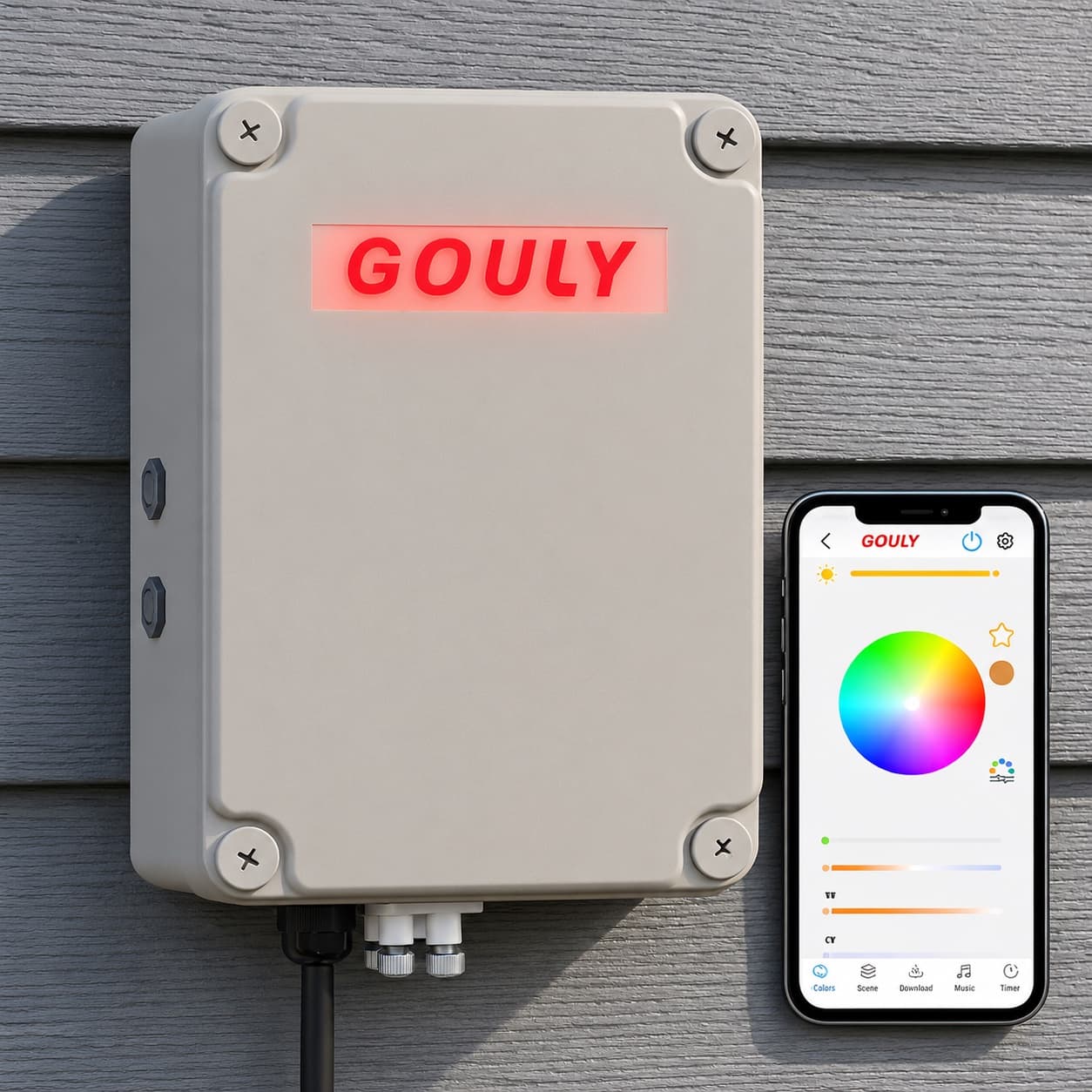
We can assess what you have now, or replace it with a professionally installed GOULY Gen 3 system on one app with 1,000+ designs.
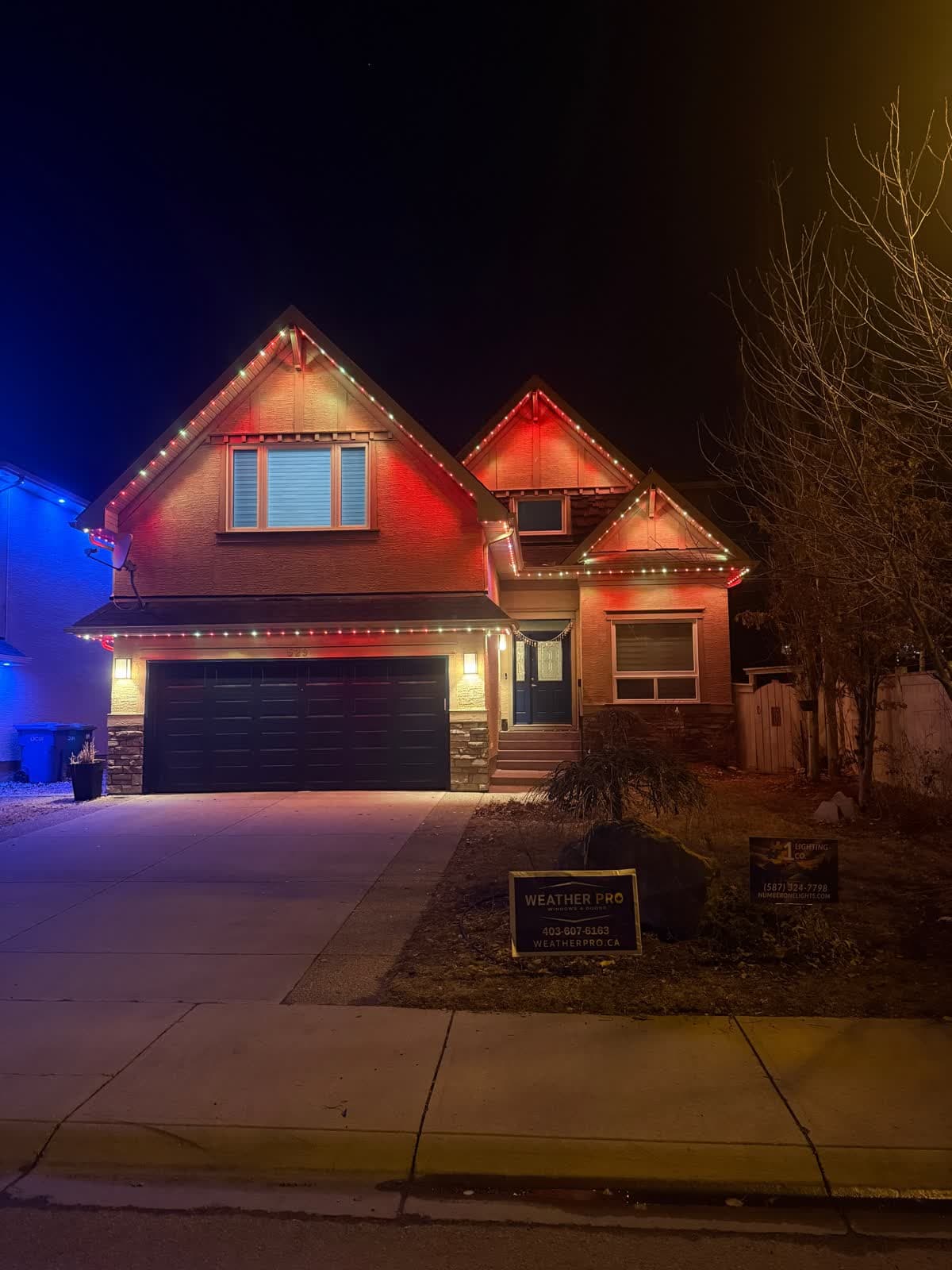
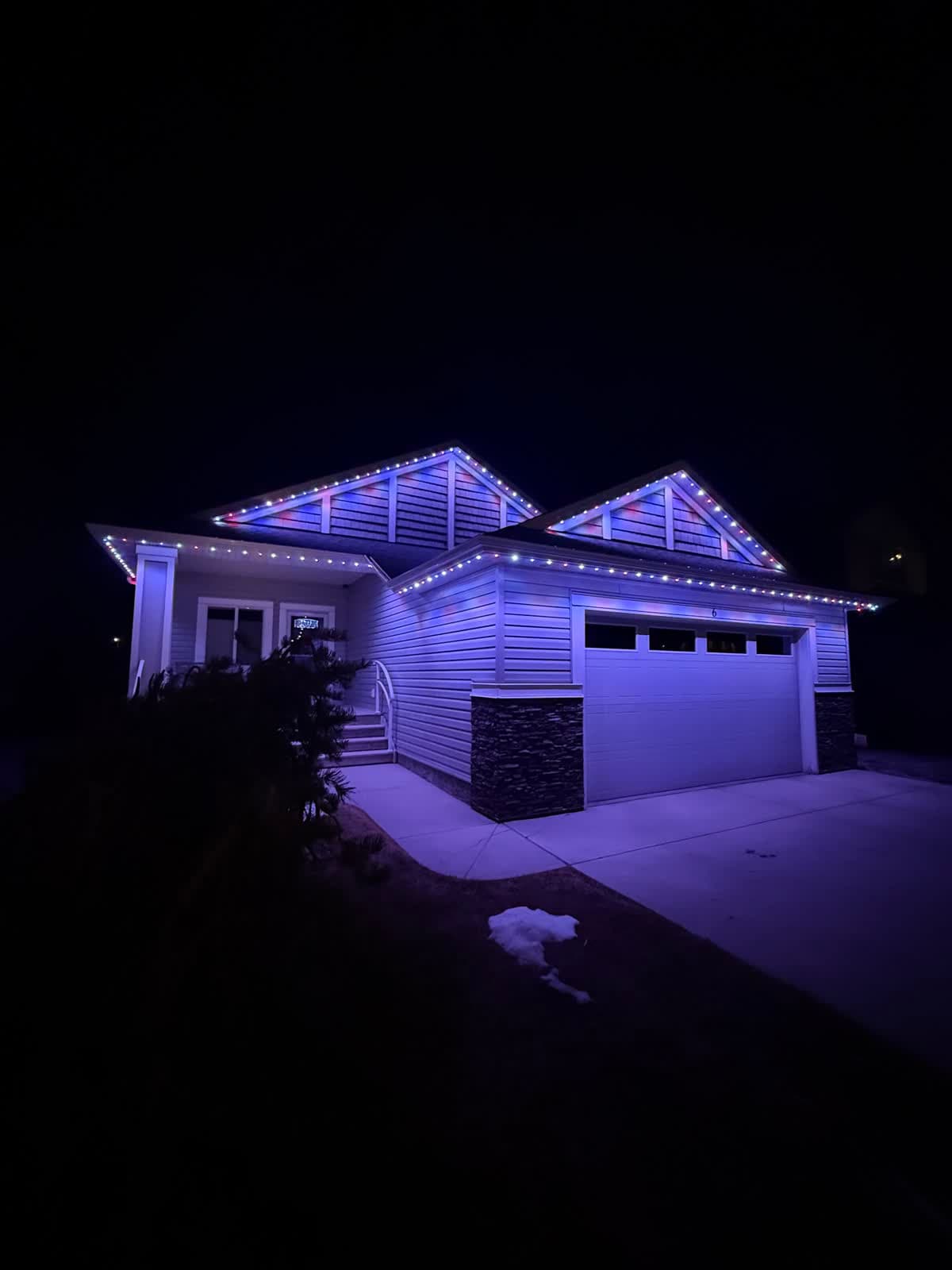
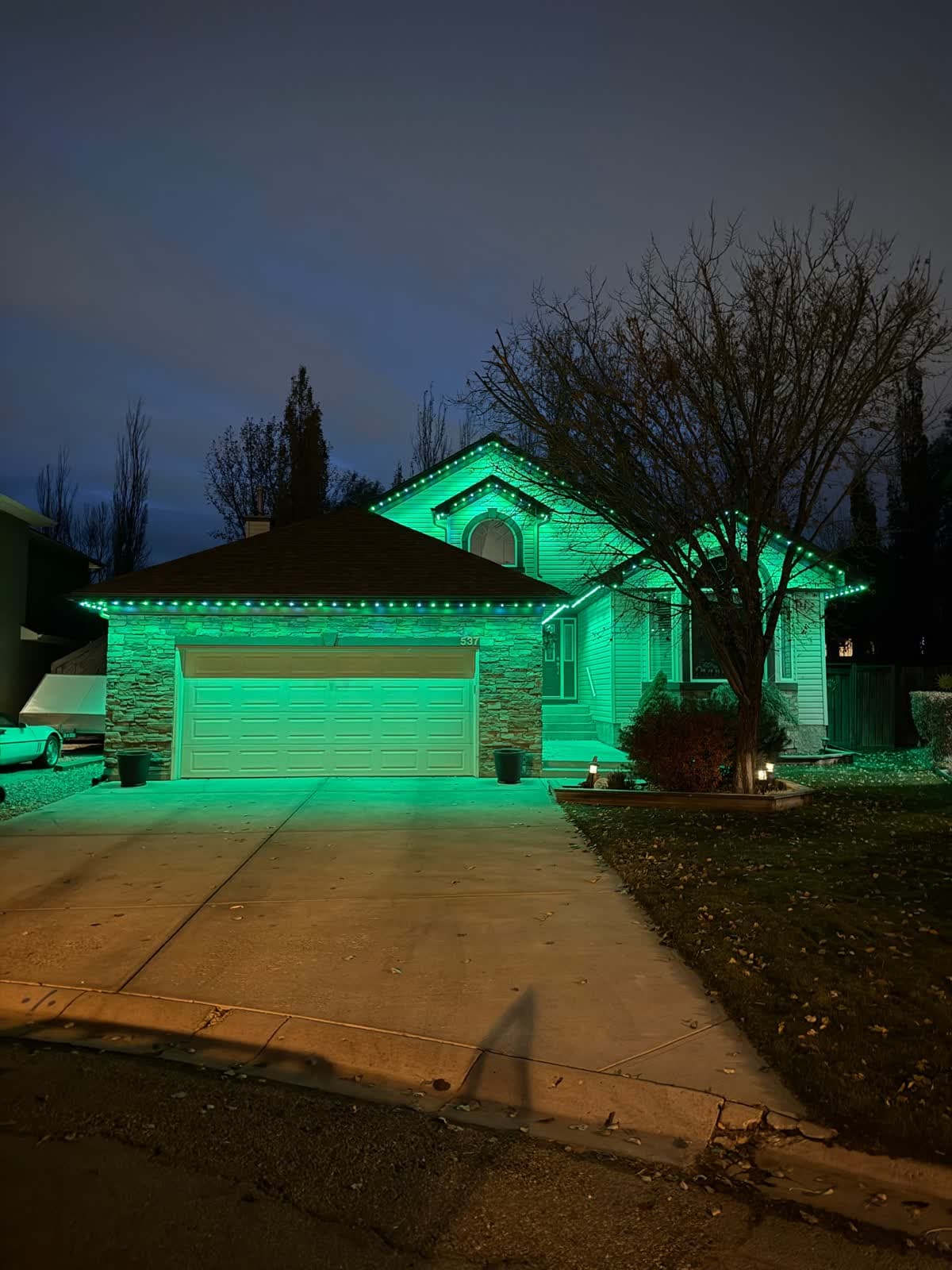
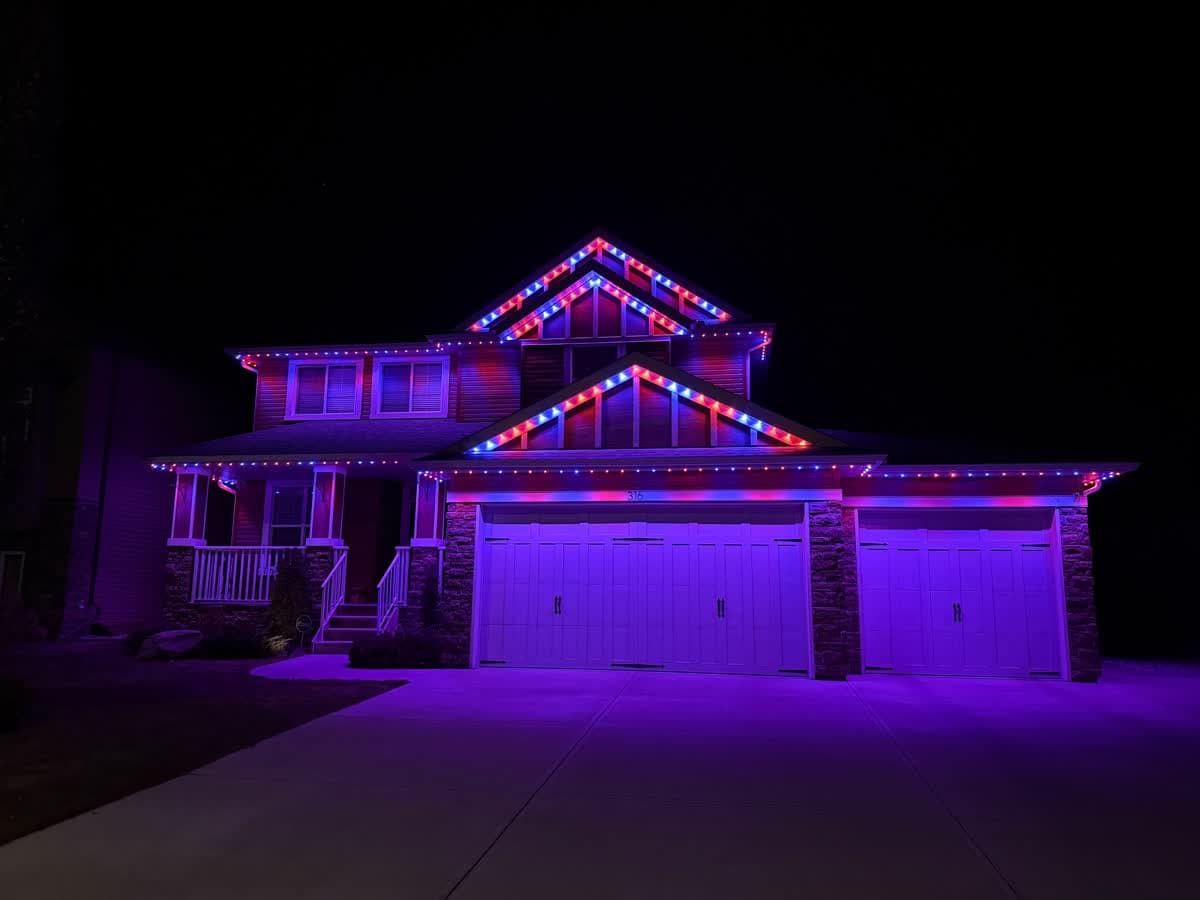 From our gallery
You open the JellyFish app to switch your roofline to a new pattern and it cannot find the controller. Or the controller screen shows "!C", the app spins, or Alexa stopped answering. JellyFish permanent lights run from a controller box that joins your home Wi-Fi, and most app problems come back to that connection.
This guide walks through the fixes in the order most likely to work, using JellyFish's own support pages wherever they give exact steps. Where we could not confirm a step, we say so and keep it general.
Tired of fighting the app?
Get a free mockup of your house lit up
Which JellyFish app you have
The current app is listed on the App Store as JellyFish Designer Cloud, published by Big Fish Automation, LLC. JellyFish support pages also call it the Cloud app or the Designer app, and on an iPhone it shows up in settings as "JF Designer". Older black P2 controllers used a separate app called JellyfishP2, and JellyFish has a support page for moving those controllers over to the Designer app. If you are following steps written for the other app, that alone can explain why the menus do not match.
Quick checklist before you start
- Check power at the control box. Exterior GFCI outlets trip after rain or snow melt.
- Make sure your phone is on the same Wi-Fi as the controller. JellyFish lists this as a requirement.
- Force-close the app and reopen it. Then check whether the controller shows as online.
- Update the app. Some newer pattern types need newer controller firmware, so an old app and an old controller can disagree.
- Look at the controller screen. It tells you more than the app does (see the next section).
Read the controller screen first
JellyFish's quick-start guide explains the symbols in the corner of the controller display:
- "#" means the controller is connected to the router by an ethernet cable.
- "*" followed by a number is the wireless signal strength. A *8 or *9 is strong. A *2 or *3 is weak. JellyFish recommends a Wi-Fi extender or a wired connection for anything from *0 to *7.
- "!C" after a Wi-Fi reset means the controller has cleared its old network and is ready to be connected again.
If the number is low, no amount of app troubleshooting will make the connection steady. Fix the signal first.
Problem #1: the app cannot find the controller or shows it offline
Symptoms: The app shows no controller, or the controller appears offline while the lights are still running their last pattern.
Common causes:
- Your iPhone is blocking local network access. JellyFish's support page says iPhones will not connect unless the app is allowed on the local network.
- Your phone is on a different network, such as a guest network or a Wi-Fi extender with its own name.
- A weak signal at the control box. Control boxes often sit in a garage or behind exterior walls.
Fixes, in order:
- On an iPhone, open Settings, then Privacy, then Local Network, and make sure the switch for "JF Designer" is on.
- Join the same Wi-Fi network as the controller, then reopen the app.
- Force-close the app, or delete and reinstall it.
- Do a hard reboot of the control box. JellyFish says to switch it off for 10 minutes, then back on.
- Restart your router, and unplug and replug any Wi-Fi extender that serves the controller.
Problem #2: JellyFish lights will not connect to Wi-Fi
Symptoms: Setup fails, or the controller dropped off after you changed your router, internet provider or Wi-Fi password.
Why it happens: JellyFish states the controller needs a 2.4 GHz network and will not connect properly to 5 GHz. Many newer routers broadcast both bands under one name, and your phone may be sitting on 5 GHz. A new router or password also means the controller has to be connected again, because it is still looking for the old network.
Fixes, in order:
- If your router lets you, give the 2.4 GHz band its own name and connect to that during setup.
- Reset the controller's Wi-Fi (steps below), then connect it to your current network from the app's settings.
- If the signal stays below *8, add an extender near the control box or run an ethernet cable to it. JellyFish notes installers commonly use an extender for this.
How to reset JellyFish Wi-Fi or change to a new network
JellyFish publishes these steps for clearing the controller's saved network:
- Press and release MENU to wake the screen.
- Press and hold MENU: about 10 seconds on firmware 030 and above, or about 3 seconds on firmware starting with 020 or lower.
- Keep holding past the "Set Up" screen until "Service Menu" appears.
- The first option is "Reset WiFi". Press OK, then press OK again at the "Clear WiFi?" prompt.
- Wait about a minute. If the asterisk in the top corner is gone and "!C" shows, the reset worked. If the asterisk is still there, repeat the steps.
Then open the app, go to its settings and use the controller Wi-Fi option to join your home network. JellyFish's guide has you connect your phone to the controller's own "JellyFish" network first, then pick your home network and enter the password. Type the password carefully, since one wrong character is a common reason this step fails.
Problem #3: new patterns or features are missing
Symptoms: A pattern type you have seen online does not appear, or a feature in the app does nothing.
Why it happens: Some app releases add features that need newer controller firmware. The App Store notes for one recent version say its new pattern types require firmware 4.5.10. The firmware version also changes how long you hold MENU for a reset, so it is worth knowing which one you have.
Fix: Update the app first. If features are still missing, ask your installer or local JellyFish office whether your controller's firmware is current. We could not find a public JellyFish page that walks through firmware updates step by step, so we will not guess at one.
Problem #4: Alexa or Google Home stopped responding
JellyFish's support pages list these requirements:
- Alexa needs controller firmware 030104 or higher and Cloud app 2.3.1 or higher. It is turned on from the app's smart home setup, and it creates an "All" light plus one light for each zone.
- Google Home connects through "Works with Google". You search for JellyFish and sign in with your Cloud account. Each zone shows up as its own device, with on and off, brightness and a single colour.
Fixes, in order:
- Make sure the controller works in the JellyFish app first. Voice control cannot work if the app cannot reach the controller.
- Check that your app and firmware meet the versions above.
- Unlink and relink JellyFish in the Alexa or Google Home app, then let it discover devices again.
- Remember Google Home only handles on, off, brightness and one colour per zone. Patterns are run from the JellyFish app.
Local install and support
Number One Lights installs and supports GOULY permanent lights in Calgary, Chestermere and Strathmore
You get a local warranty and local service from the team that put your lights up. Start with a free mockup of your house lit up.
Getting support
JellyFish's troubleshooting page points owners to their local JellyFish office or the installer who put the lights up. Go in with the details ready: your phone model, the app version, the firmware version, what the controller screen shows and what you have already tried.
When troubleshooting is not worth it
If you have already:
- reset the controller's Wi-Fi more than once,
- added an extender and still see a weak signal,
- had the controller go offline again a week after fixing it,
- or you cannot get anyone local to come out,
the problem is usually not a setting you missed. That is the point where it makes sense to have someone look at the whole system: where the control box sits, the Wi-Fi path to it and the wiring.
| Feature | Many Competitors | GOULY Gen 3 |
|---|---|---|
| App | JellyFish Designer Cloud | GOULY app with 1,000+ designs |
| Mounting | Depends on your install | Aluminum track fastened to your fascia |
| Cold rating | Check your hardware | Rated -40°C to +50°C |
| Install | Varies | Professionally installed |
| Warranty | Depends on your installer | Transferable Warranty plus workmanship coverage |
| Support | Your installer or regional office | Local team in Calgary with a real phone number |
How Number One Lights can help
We install permanent lights across Calgary, Chestermere, Strathmore and area. If your current system keeps dropping, we can come out, look at what is actually there and tell you straight whether it is worth fixing. If it is not, we replace it with the GOULY Gen 3 system:
- Controlled from the GOULY app, with 1,000+ designs and holiday schedules.
- Mounted in aluminum track, fastened to your fascia. See the system.
- Rated for Alberta cold, -40°C to +50°C.
- Professionally installed, with a Transferable Warranty plus workmanship coverage.
Want the details side by side? Read Number One Lights vs JellyFish Lighting. For Wi-Fi basics that apply to any permanent light controller, see our 2.4 GHz setup guide.
What to do next
If your problem was small, a tripped outlet, an iPhone permission or a router change, the steps above should have you back up tonight.
If it keeps coming back, get a free quote and a team member will look at your home virtually and send a clear quote. No pressure, no surprises.
Done troubleshooting?
See your house lit up with a free mockup
We design, install and support GOULY permanent lights in Calgary, Chestermere and Strathmore. Get your free mockup and quote, or text or call us with any question.
Frequently asked questions
Why can't the JellyFish app find my controller?
On an iPhone, the most common cause is the Local Network permission. Open Settings, then Privacy, then Local Network, and turn on JF Designer. Also make sure your phone is on the same Wi-Fi as the controller, then force-close and reopen the app.
What Wi-Fi does a JellyFish controller need?
JellyFish says the controller needs a 2.4 GHz network and will not connect properly to 5 GHz. If your router combines both bands under one name, give the 2.4 GHz band its own name and connect to that.
What do the symbols on the JellyFish controller screen mean?
A # means the controller is wired to the router by ethernet. An asterisk followed by a number is the Wi-Fi signal strength: 8 or 9 is strong, and JellyFish recommends an extender or a wired connection for 0 to 7. !C after a Wi-Fi reset means it is ready to connect again.
How do I reset the Wi-Fi on a JellyFish controller?
Wake the screen with MENU, then hold MENU (about 10 seconds on firmware 030 and above) until the Service Menu appears. Choose Reset WiFi, press OK, then OK again at Clear WiFi. After about a minute, !C shows when it worked.
How do I change the Wi-Fi network on my JellyFish lights?
A new router, provider or Wi-Fi password means the controller is still looking for the old network. Reset the controller's Wi-Fi from the Service Menu, then use the controller Wi-Fi option in the app's settings. JellyFish's guide has you join the controller's own JellyFish network first, then pick your 2.4 GHz home network and type the password.
Who do I call if my JellyFish lights still will not connect?
JellyFish points owners to their local office or installer. If you are in Calgary, Chestermere or Strathmore and want a second opinion, Number One Lights can look at your system and tell you whether it is worth fixing or replacing with a GOULY Gen 3 system.
Questions before you book?
Visit our FAQ page
Get quick answers on Gen 3 Lighting, pricing, install timelines, app setup, warranty, and what to expect on install day.