Magic Home Pro is designed for indoor LED lighting and is not intended for permanent outdoor installation.
App crashing, device offline, or pairing stuck? The 7 failure modes that break Magic Home Pro and how to fix each one. Start with the 60-second check.
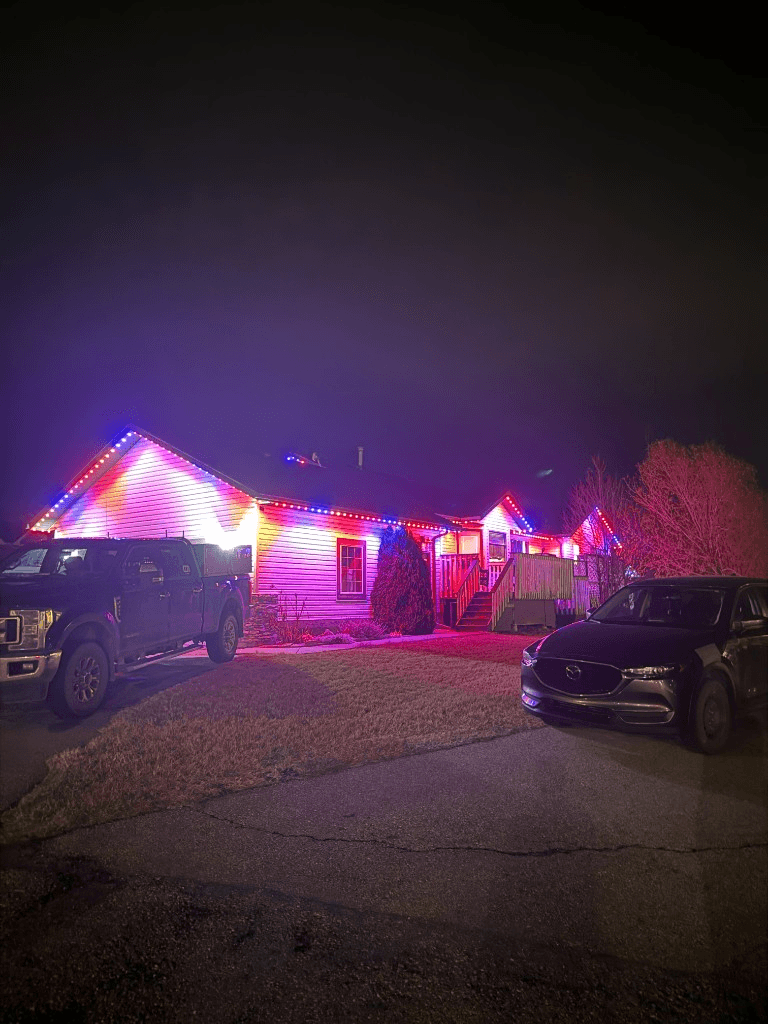 From our gallery
You opened the Magic Home Pro app to change your LED colour, and nothing happened. Maybe the app crashed on launch. Maybe it spun forever on the connect screen. Maybe your lights are stuck on one colour, flashing on their own, or the whole device just shows "offline" with no useful error. You are not alone — the app sits at roughly 2.5 stars on the App Store with thousands of complaints about the exact same problems, and most of the threads on Reddit, the Home Assistant forums, and TP-Link's community boards are people trying to talk each other off the ledge.
This guide is the most current 2026 troubleshooting walkthrough for Magic Home Pro: the failure modes that actually break the app, what's causing each one, how to fix it, and the point where it stops being worth the time. If you have already tried "uninstall and reinstall" three times, skip to the bottom section.
~2.5★
Magic Home Pro App Store rating
6+ yrs
Same complaints repeated on forums since 2019
$0
What this guide costs you
Quick checklist before you start
Before you spend an hour resetting controllers, run this 60-second triage:
- Force-close and reopen the app. Swipe it off the multitasking screen, then reopen. Roughly a third of "crashed app" reports clear with a clean restart.
- Update the app. Open the App Store or Google Play and check for an update. Magic Home Pro pushes silent updates that break older builds.
- Confirm your phone is on 2.4 GHz Wi-Fi. If your phone is on the 5 GHz band, the app cannot find the controller. More on this in failure mode #2.
- Power cycle the controller. Unplug the LED controller at the wall, wait 30 seconds, plug it back in. Half of "lights not responding" cases are nothing more than a hung controller.
If none of those fix it, work through the failure modes below in order.
Failure mode #1: app crashes on launch or freezes mid-setting
Symptoms: The app opens, shows the splash screen, then closes. Or it opens, you tap a device, and it freezes on a blank screen. Or you change a colour and the whole app locks up.
Why it happens: Magic Home Pro is published by Zengge, a Chinese OEM that licenses the same app to dozens of generic LED-strip brands. Each app update has to support a long tail of legacy controllers, and recent updates have introduced regressions — App Store reviews from the last 12 months repeatedly mention an update that traps users on a settings screen with no way out except force-closing. Cached data from older firmware also corrupts the new build.
Fixes, in order:
- Force-close and reopen. Swipe up to close the app fully, not just background it.
- Clear app data. On iOS: delete the app and reinstall. On Android: Settings → Apps → Magic Home Pro → Storage → Clear Data, then reopen and re-pair your devices.
- Check OS compatibility. Magic Home Pro often lags behind new iOS and Android releases. If you just updated your phone OS, expect 2–6 weeks of crashes until Zengge patches the app.
- Try the alternate app. Zengge publishes two apps that connect to the same controllers: "Magic Home Pro" and "Magic Home — Smart Home." If one crashes, the other sometimes works for the same hardware. This is not a fix — it is a workaround.
Failure mode #2: Wi-Fi pairing fails or stalls on setup
Symptoms: The app asks you to connect to a "LEDnet" or "VMxxxx" Wi-Fi network, then either cannot find the controller, asks for a password that was never provided, or times out at "configuring device."
Why it happens: Magic Home controllers only support 2.4 GHz Wi-Fi, but most modern routers default to dual-band SSIDs that broadcast both 2.4 GHz and 5 GHz under the same name. Your phone latches onto 5 GHz because it is faster, and the app silently fails because the controller cannot see that network. If your controller pairs fine but keeps dropping offline afterward, that is a separate issue — see our full guide to Magic Home Pro Wi-Fi disconnecting.
Fixes, in order:
- Force your phone onto 2.4 GHz. The easiest way: temporarily disable 5 GHz on your router (most routers have a separate toggle under wireless settings). Pair the controller, then re-enable 5 GHz.
- Split your SSIDs. If your router lets you, give the 2.4 GHz and 5 GHz bands different names — for example "Home-24" and "Home-5". Connect your phone to "Home-24" before pairing.
- Reset the controller into pairing mode. Unplug the strip, then quickly plug-unplug-plug-unplug-plug-unplug-plug (on-off-on-off-on-off-on, about a second each). The LEDs should enter a fast strobe — that is pairing mode. Then re-open the app and tap "Add Device."
- Disable your VPN. Magic Home pairing uses local network discovery. If you have an always-on VPN (NordVPN, Surfshark, etc.), it blocks the broadcast.
- Bypass mesh quirks. Eero, Google Nest Wi-Fi, and other mesh systems sometimes block the controller from joining. Temporarily plug your phone into the main node's 2.4 GHz band rather than a satellite.
If pairing still fails, the controller's firmware may be corrupted from a botched over-the-air update — see failure mode #5.
Failure mode #3: lights show "device offline" even though they were working
Symptoms: Device was online yesterday. Today the app shows it offline. The lights themselves may still be on a saved colour, or they may have reset to default white.
Why it happens: Three root causes, in order of frequency:
- Your router rebooted overnight or rotated its IP lease, and the controller did not reconnect cleanly.
- Your ISP changed the WAN IP, breaking the cloud relay that Magic Home uses to reach the controller from outside your house.
- The controller's onboard chip locked up. The Zengge controllers run on inexpensive ESP chipsets that drift out of sync after weeks of uptime.
Fixes:
- Power cycle the controller for 30 seconds. This solves most overnight offline reports.
- Power cycle your router too if step one does not work.
- Forget and re-add the device in the app. This rebuilds the cloud binding.
- Reserve a static DHCP lease for the controller in your router settings. This prevents the IP rotation that causes overnight offline events.
- Check the LED indicator on the controller itself. Solid blue means connected. Slow blink means searching for Wi-Fi. Fast blink means pairing mode. No light means dead power supply — replace it.
Failure mode #4: lights respond randomly, flash on their own, or change colour at 3 AM
Symptoms: Lights turn on by themselves. They cycle through colours unprompted. They reset to a default scene in the middle of the night. Multiple strips do it at the same time.
Why it happens: Magic Home Pro stores schedules and scenes in the cloud, not locally on the controller. When Zengge's servers push a sync, it can replay an old schedule you forgot about — or trigger a default scene if the server thinks the device disconnected. Reports of this exact issue go back to 2019 and still surface in 2026 reviews.
Fixes:
- Audit your schedules. In the app, open the device, then Timer or Schedule. Delete every entry you do not actively use.
- Disable automatic scenes. If you ever turned on "Music Mode" or "Scene Mode," it may still be running in the background.
- Revoke any IFTTT, Alexa, or Google Home integrations you set up and forgot about. These can replay old triggers.
- Factory-reset the controller if random behaviour persists after the above. The 7-cycle on-off pairing sequence wipes stored schedules.
If your strips are reset-flashing through colours nightly across multiple devices, that is the Zengge cloud — there is no local-only mode in Magic Home Pro that fully prevents it.
Failure mode #5: firmware update bricked the controller
Symptoms: Lights worked fine, you accepted a firmware update prompt, and now the controller will not pair, will not connect to Wi-Fi, or shows a permanent solid red indicator.
Why it happens: Magic Home firmware is pushed over the air with no rollback path. Documented cases on the Home Assistant GitHub and the Homey community forum show newer firmware causing watchdog reboot loops on older hardware revisions. There is no way to downgrade through the official app.
Fixes (in order of escalation):
- Try the 7-cycle reset described in failure mode #2. If the controller still has a working bootloader, this puts it back into a recoverable state.
- Pair, then immediately accept any pending update. Sometimes a half-flashed firmware finishes if you re-pair within the first 60 seconds.
- Contact Zengge support. They have replaced bricked controllers under warranty in some cases, but response times routinely exceed two weeks per JustUseApp's complaint logs.
- Re-flash with custom firmware (advanced). Communities like Tasmota, ESPHome, and WLED have flashable replacements for many Magic Home boards. This voids the warranty, requires soldering or a USB-serial adapter, and is well outside what most homeowners want to deal with.
Failure mode #6: login fails, password reset emails never arrive
Symptoms: App asks you to log in. Your password is rejected. You request a reset email and it never shows up. Or it arrives, the link is expired, and the loop repeats.
Why it happens: Magic Home Pro added mandatory account login in late 2023. The auth backend is hosted in China and email delivery to North American inboxes is flaky — emails frequently land in spam, get blocked by Gmail/iCloud filters, or simply never send. Customer support, per App Store reviews, "constantly goes offline."
Fixes:
- Check spam, promotions, and junk folders for resets sent in the last 60 minutes.
- Try logging in with the alternate Magic Home app ("Magic Home — Smart Home"). It uses the same account.
- Create a new account with a different email if your current one will not reset. You will need to re-pair every controller, but this is faster than waiting on support.
- Some local-control features work without login. Bluetooth pairing on newer controllers bypasses the cloud entirely — but you lose remote control outside the house.
Failure mode #7: app works on iPhone but not Android (or vice versa)
Symptoms: Your iPhone pairs fine. Your spouse's Android phone cannot find the same controller. Or the reverse.
Why it happens: Zengge ships separate Android and iOS builds with different feature parity. Android historically has worse Bluetooth Low Energy handling, more crashes on Samsung One UI, and known issues with Android 14 and 15 background networking. iOS has its own problems with local network permission prompts after iOS 17.
Fixes:
- Grant local network permission explicitly. iOS: Settings → Magic Home Pro → Local Network → toggle on. Android: Settings → Apps → Magic Home Pro → Permissions → enable Nearby Devices, Location, and Bluetooth.
- Make sure both phones are on the same Wi-Fi network and the same band.
- Pair once, then share. Pair on the phone that works, then use the app's "Share Device" feature to add the second user. This skips the discovery step on the second phone.
When troubleshooting is not worth it
If you have already cycled through reinstalls, controller resets, Reddit threads, and a Saturday or two of troubleshooting without a permanent fix, the underlying problem is usually not something you missed in the settings:
- Force-closed and reinstalled the app more than once
- Reset your controller two or three times
- Joined a Reddit thread or a forum and gotten nowhere
- Lost a Saturday afternoon to LED troubleshooting
The Magic Home Pro app is a free piece of software that has shipped at roughly 2.5 stars on the App Store for years. Zengge is the chipset OEM, not a service company — there is no single firmware QA team to escalate to, and the cloud reliability issues documented since 2019 are architectural, not bug-fix-able from the homeowner side. The hardware itself is consumer-grade ESP controllers with indoor-rated weatherproofing.
At some point the math flips. If you value your time at $25 an hour and you have already spent 6 hours on this over the last year, you are $150 in. Add the cost of replacement strips when the IP rating fails after a couple of seasons. Add the chronic frustration of your lights doing what they want at 3 AM. That is not a $200 LED strip anymore — that is a system that costs you more in time and aggravation than the upfront price ever saved.
| Feature | Many Competitors | GOULY Gen 3 |
|---|---|---|
| App rating | ~2.5★ App Store | ✓GOULY app, designed for outdoor pucks |
| Hardware | Generic ESP controllers, indoor-rated | ✓Outdoor-rated RGBW pucks, sealed connections |
| Wi-Fi | 2.4 GHz only, cloud-dependent | ✓2.4 GHz with local fallback |
| Install | DIY, taped to wall | ✓Professional, fascia-mounted track |
| Lifespan | 1–3 seasons (consumer LEDs) | ✓50,000+ hours (17+ years at 8 hrs/day) |
| Support | Email queue, often unanswered | ✓Local company, warranty, real phone number |
The actual upgrade path
Permanent outdoor LED lights solve the same use case Magic Home Pro is often asked to solve — app-controlled RGB LEDs that run a colour for any holiday, scene, or game day — but built for outdoor installation from the start: professionally installed, engineered for weather, and warrantied.
Here is what changes when you switch:
- The hardware is outdoor-rated from the start. Sealed RGBW pucks, aluminum track colour-matched to your fascia, and a certified control box instead of a $10 plastic brick.
- The app actually works. The GOULY app is purpose-built for permanent outdoor systems with 1,000+ pre-built designs, sunset and sunrise scheduling, and proper local control so a Zengge server outage cannot black out your house.
- You stop touching ladders. The system is installed once, professionally, and you never climb up to fix a strip again.
- It works year-round, not just for Christmas. Halloween, Canada Day, birthdays, game nights, Mother's Day, everyday warm white curb appeal — every occasion runs through the same app on a single tap.
- Real warranty, real support. Local company, real phone number, warranty that transfers if you sell the house.
The break-even math is straightforward. If you have been buying or replacing cheap LED strips for two or three seasons, paying for a professional Christmas light hang once or twice, and losing weekends to Magic Home troubleshooting, you are already inside the cost band of a permanent system. The difference is one of them keeps working and one of them does not.
What to do next
If your Magic Home Pro problem is small (single app crash, one-time pairing fail), work through the failure modes above and you will probably be back up in 30 minutes.
If your Magic Home Pro problem is chronic — repeated offline events, nightly random behaviour, controllers that brick after firmware updates, lights that look terrible in daylight — stop spending time on it. Explore the permanent system to see what gets installed, or get a free quote. A team member will view your home virtually and deliver a clear, honest quote. No pressure, no surprises.
You have already proven you want app-controlled outdoor lighting. The only question left is whether you want it on a 2.5-star app or a system that actually works.
Frequently asked questions
The most common causes are recent app updates that introduced regressions, OS compatibility lag after an iOS or Android update, corrupted cached data, and Zengge cloud server hiccups. Force-close the app, update it from the App Store or Google Play, clear app data, and re-pair the controller. If crashes persist, try the alternate app 'Magic Home — Smart Home,' which uses the same account and hardware.
Magic Home controllers only support 2.4 GHz Wi-Fi. If your router broadcasts both 2.4 GHz and 5 GHz under the same SSID, your phone often grabs the 5 GHz band and the controller cannot see it. Temporarily disable 5 GHz on your router, or split the bands into separate SSIDs, then re-pair. Also disable any VPN and confirm your phone has local network permission for the app.
Power-cycle the controller in a quick sequence: plug it in, unplug, plug, unplug, plug, unplug, plug. Do this about once per second. The LEDs should enter a fast strobe pattern, which is pairing mode. Then open the app and add the device again. This wipes stored schedules and Wi-Fi credentials.
Magic Home Pro stores schedules and scenes in the Zengge cloud, not locally on the controller. Forgotten timers, leftover Music Mode or Scene Mode triggers, and stale IFTTT or Alexa integrations can fire on their own. Audit and delete all schedules in the app, revoke any third-party integrations, and factory-reset the controller. There is no full local-only mode that prevents cloud-driven triggers.
Magic Home controllers are designed for indoor LED strips with consumer-grade weatherproofing at best. Most failure reports involving moisture, surge, or temperature swings come from outdoor use. For outdoor applications, a purpose-built permanent system with outdoor-rated RGBW pucks, sealed connections, and a certified control box is the appropriate solution.
If you want app-controlled outdoor lighting that actually works, a professionally installed permanent LED system is the upgrade. Outdoor-rated hardware, a purpose-built app like GOULY, real local support, and a warranty replace the 2.5-star Magic Home experience. Get a free quote at /get-a-quote.
Questions before you book?
Visit our FAQ page
Get quick answers on Gen 3 Lighting, pricing, install timelines, app setup, warranty, and what to expect on install day.