Controller offline, sunset timer only turning on half the house, or custom scenes back to default the next day? The common My Home Lighting app problems and how to fix each one.
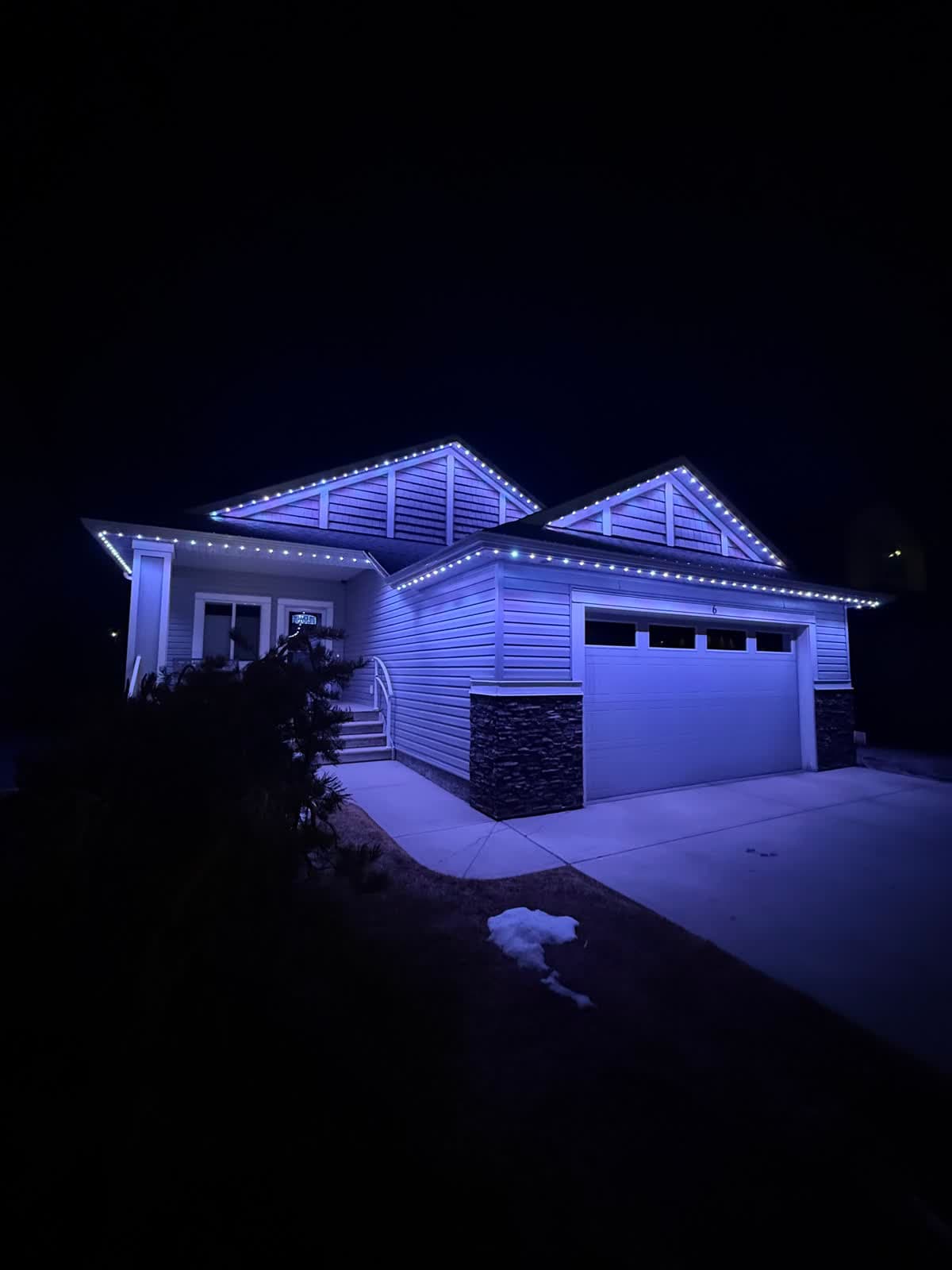 From our gallery
You open the My Home Lighting app to change your roofline lights and nothing happens. The controller shows offline, the sunset timer turned on only half the house, or the custom scene you built last night is back to default this morning. You are not the only one. The app is used to control permanent outdoor lights, pixel strips, neon and landscape lighting, and its store reviews are full of the same handful of complaints.
This guide covers those problems in the order most likely to fix them, what the app can and cannot do according to its own listing, and the point where troubleshooting stops being worth your evenings. If you are setting the app up for the first time, our My Home Lighting app instructions walk through zones, timers and scenes.
4
Output channels the listing says the PRO version has
12
Zones the listing says the PRO version supports
1K+
Google Play downloads
What My Home Lighting is
My Home Lighting is a free controller app on iPhone and Android. Its App Store listing describes it as a cloud enabled control system for RGB and RGBW lighting, with a PRO version that has 4 output channels and up to 12 zones. The listing also mentions per-pixel colour, brightness and speed, sunset and sunrise timers, autoplay scenes, music mode, voice control for smart home integration, and radar motion sensing.
On Google Play the developer is listed as "my smart lighting", based in China, with a support email of myhomelighting72@gmail.com. Store reviews suggest the app usually comes with a lighting system bought from an installer or seller, rather than a kit off a store shelf. That matters, because the company that installed your lights is usually your fastest route to help.
Quick checklist before you start
Run these first. They clear a lot of "not working" cases:
- Check power at the controller. Exterior GFCI outlets trip after rain or snow melt and cut power with no warning in the app.
- Power cycle the controller. Unplug it, wait 30 seconds, plug it back in.
- Update the app. The App Store version history shows frequent "fix bugs" releases through 2025 and 2026, so an old version may have a problem that is already fixed.
- Force-close and reopen the app, then check whether the controller shows as online.
- Confirm your home internet works. The app is cloud enabled, so an internet outage can look like a lighting problem.
Problem #1: the controller shows offline
Symptoms: The app cannot reach the lights, or they drop off every few days. The lights may still be running their last scene.
Common causes:
- Weak Wi-Fi at the controller. Controllers usually sit outside, in a garage or behind exterior walls, which is a hard place for any smart device to hold a signal.
- A router change. A new router, a new Wi-Fi password or a new network name means the controller has to be connected again.
- The 2.4 GHz issue. We could not confirm which Wi-Fi bands the My Home Lighting controllers support. Most smart lighting controllers of this type only join 2.4 GHz networks, so if your router combines 2.4 GHz and 5 GHz under one name, that is a common reason pairing fails.
Fixes, in order:
- Power cycle the controller after any router restart.
- Check the Wi-Fi signal where the controller is mounted. A mesh node or extender on that side of the house often fixes repeat drop-outs.
- If you changed your router or password, re-add the controller in the app using the network details you use now.
- If your router lets you, give the 2.4 GHz band its own name and pair to that.
Problem #2: the schedule does not run, or only part of the house turns on
Symptoms: You set the lights to turn on at sunset and off at sunrise, and they do not follow it. One Google Play reviewer reported exactly this: a sunset to sunrise schedule saved in the app, and half the lights staying on.
Common causes:
- Timers set per zone. On a multi-zone system, a timer may only apply to the zone that was selected when you created it.
- Location. Sunset and sunrise timing depends on knowing where you are. The App Store listing says the app collects approximate location for app functionality.
- Overlapping timers. Two timers that touch the same zone can cancel each other out.
Fixes, in order:
- Delete the timer and recreate it, checking which zones it applies to.
- Make sure the app has permission to use your location, then recreate the sunset timer.
- Remove any old timers that overlap the new one.
- Test with a fixed clock time instead of sunset. If the fixed time works, the problem is the sunset setting, not the controller.
Problem #3: you ran out of timers
Symptoms: You cannot add a new schedule for the next holiday without deleting an old one.
What users report: An App Store reviewer wrote in 2026 that the app limits them to 6 timers, and asked for around 20. We could not confirm the limit in any official documentation, so treat it as user-reported.
Workaround: Keep one everyday timer, and swap the holiday timers in and out a week before each holiday. Write your favourite settings down so recreating them takes minutes, not an evening.
Problem #4: custom scenes do not save
Symptoms: You set up zones in a custom scene, and the next day they are back to default.
What users report: A 2025 App Store review describes exactly this, and adds that every time you change a pattern you have to save it as a palette before you can use it.
Fixes, in order:
- Save the pattern as a palette first, then save the scene that uses it.
- Close and reopen the app and check the scene is still there before you walk away.
- Update the app. Several releases since that review are listed as bug fixes, though the release notes do not say which bugs.
Problem #5: the other phone in the house cannot see your patterns
Symptoms: You and your partner are logged into the same account, but a pattern saved on one phone does not appear on the other.
What users report: An App Store reviewer said custom patterns save only to the phone they were made on, not to the account, so each person has to recreate them.
Workaround: Pick one phone for creating and editing patterns, and use the other for everyday on, off and scene changes.
Problem #6: music mode or voice control does not respond
The listing describes two sound features: playing music from your phone so the lights dance to it, and a voice activation function that reacts to background noise. Both depend on your phone, so:
- Check that the app has permission to use the microphone and your music library.
- Keep the phone close to the sound source when using the background noise mode.
- The listing says voice control is supported for smart home integration but does not name which assistants. If yours is not responding, ask your installer which voice assistants your controller supports before you spend time on it.
How to reset the controller
There is no official public manual for My Home Lighting controllers that we could find, and reset steps vary between controllers. Use them in this order:
- Soft reset: unplug the controller for 30 seconds and plug it back in. This keeps your settings.
- Re-add in the app: delete the controller from the app and add it again.
- Factory reset: check the label on the controller or ask your installer for the exact steps. Most controllers of this type use either a button hold or a sequence of power cycles. A factory reset can erase your zones, so write your zone layout down first.
Getting support
If your lights came from an installer, call them first. They know your controller model and how your zones are set up. For the app itself, Google Play lists the developer's support email as myhomelighting72@gmail.com, and the developer has replied to Google Play reviews offering help through WhatsApp. Two Google Play reviewers said the in-app help and instructions are very basic, and one said the seller's support was poor, so go in with the details ready: your phone model, app version, controller model and what you have tried.
When troubleshooting is not worth it
If you have already:
- reset the controller and re-added it more than once,
- rebuilt the same scenes and timers after they disappeared,
- had the lights go offline again a week after fixing them,
- or spent another evening on the app instead of enjoying the lights,
the problem is usually not a setting you missed. It is an app rated below 3 stars on the App Store, with support that may be an email inbox overseas.
| Feature | Many Competitors | GOULY Gen 3 |
|---|---|---|
| App | My Home Lighting, rated below 3★ on the App Store | ✓GOULY app with 1,000+ designs |
| Mounting | Depends on the installer or kit | ✓Aluminum track fastened to your fascia |
| Cold rating | Depends on the hardware | ✓Rated -40°C to +50°C |
| Install | Varies | ✓Professionally installed |
| Warranty | Depends on the seller | ✓5-year limited manufacturer warranty plus workmanship coverage |
| Support | Developer email or your seller | ✓Local team in Calgary with a real phone number |
The upgrade path
A permanent LED system from Number One Lights gives you app-controlled colour for every holiday, game night and everyday warm white, without the app being the weak link:
- Controlled from the GOULY app, with 1,000+ designs.
- Mounted in aluminum track, fastened to your fascia. See the system.
- Rated for Alberta cold, -40°C to +50°C.
- Professionally installed, with a 5-year limited manufacturer warranty plus workmanship coverage.
- Backed by a local Calgary team you can call instead of emailing a support inbox.
What to do next
If your problem was small, a tripped outlet, a controller that needed a power cycle or a timer pointed at the wrong zone, the steps above should have you back up tonight.
If it keeps coming back, get a free quote and a team member will look at your home virtually and send a clear price. No pressure, no surprises.
Frequently asked questions
Usually weak Wi-Fi at the controller, a router restart, or a changed network name or password. Power cycle the controller, check the signal where it is mounted, and re-add it in the app if your network changed. Most controllers of this type only join 2.4 GHz Wi-Fi, so give the 2.4 GHz band its own name if pairing fails.
Check which zones the timer applies to, make sure the app has location permission, and remove any overlapping timers. Then recreate it. If a fixed clock time works but sunset does not, the problem is the sunset setting rather than the controller.
An App Store reviewer reported a limit of 6 timers in 2026. We could not confirm it in official documentation. A simple workaround is to keep one everyday timer and swap holiday timers in a week before each holiday.
App Store reviewers report zones in custom scenes going back to default, and patterns only saving on the phone that made them. Save each pattern as a palette before saving the scene, reopen the app to confirm it stuck, keep the app updated, and use one phone for building patterns.
Start with the company that installed your lights, since they know your controller and zones. Google Play lists the developer's support email as myhomelighting72@gmail.com. If you would rather have a system with a local team behind it, Number One Lights installs permanent lights in Calgary with a 5-year limited manufacturer warranty plus workmanship coverage.
Questions before you book?
Visit our FAQ page
Get quick answers on Gen 3 Lighting, pricing, install timelines, app setup, warranty, and what to expect on install day.