No instruction manual came with your lights? How to set up the My Home Lighting app, create zones, save custom patterns and schedule sunset timers, plus the quirks other owners report.
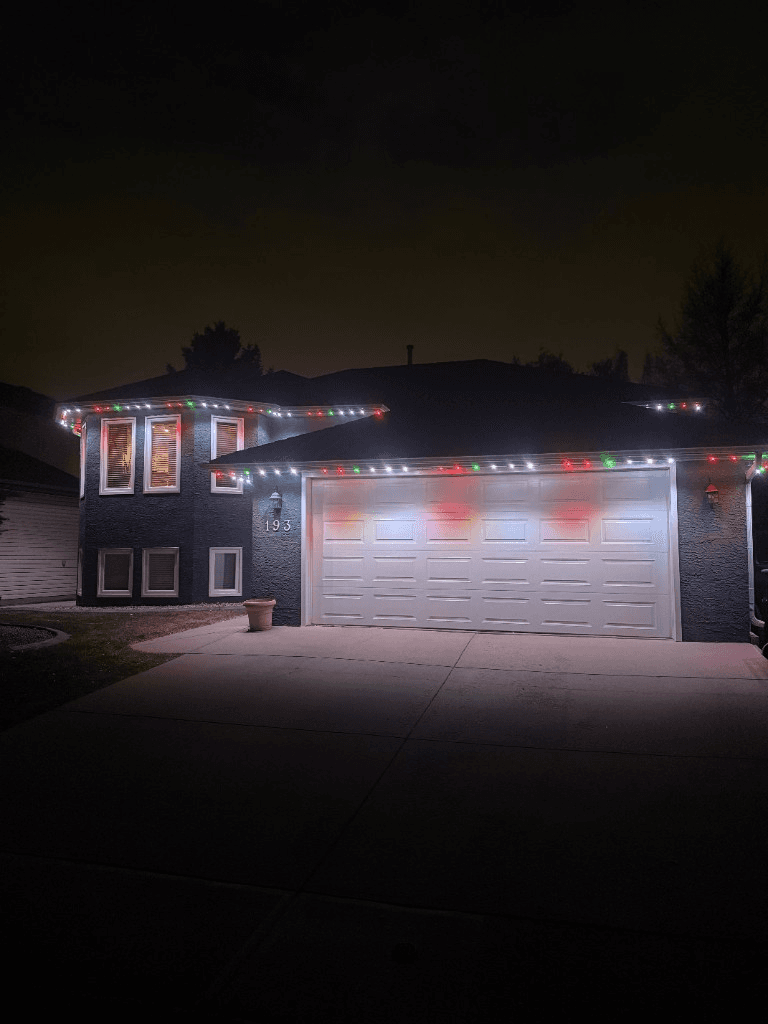 From our gallery
You have new permanent lights on the house, a controller in the garage, and an app called My Home Lighting on your phone. Then you look for the instructions and find very little. Two Google Play reviewers said the same thing: the in-app help is a basic booklet, and there are almost no instructions beyond picking a colour.
This guide fills the gap. It covers what the app does according to its own store listing, how to set it up, how zones, timers and scenes fit together, and the quirks other owners have reported so you do not lose an evening to them. We could not find an official instruction PDF from the developer, so where steps depend on your controller, we say so. If something is already broken, go to our guide to My Home Lighting app not working.
4
Output channels on the PRO version, per the listing
12
Zones across those 4 channels
6
Timer limit, as reported by an App Store reviewer
What the app can do
According to the App Store listing, My Home Lighting is a cloud enabled control system for RGB and RGBW lighting, built for permanent outdoor lights, pixel strips, neon and landscape lighting. The listing describes:
- Channels and zones: the PRO version has 4 output channels, and you can create up to 12 zones across them. Each zone can run its own pattern or scene.
- Per-pixel editing: each light can be set individually for colour, brightness and speed.
- Custom patterns and scenes, plus autoplay scenes for timed play.
- Timers with sunset and sunrise options.
- Music mode, using music from your phone, and a voice activation mode that reacts to background noise.
- Voice control for smart home integration. The listing does not name which assistants.
- Radar motion sensing to trigger the lights for security and convenience.
The app is free on iPhone (iOS 15 or later) and Android, in English and Simplified Chinese. Not every controller will have every feature. The 4-channel layout is described as the PRO version, so ask your installer which controller you have.
Before you start
- Install the latest version of the app. The App Store version history shows regular bug-fix releases.
- Have your Wi-Fi name and password ready. The app is cloud enabled, so the controller needs your home network. Most controllers of this type only join 2.4 GHz Wi-Fi. If your router uses one name for 2.4 GHz and 5 GHz and pairing fails, that is the first thing to check.
- Allow location access. The App Store listing says the app collects approximate location for app functionality, and sunset and sunrise timers need to know where you are.
- Stand near the controller with your phone while you add it.
- Ask your installer how your zones are wired. Knowing which channel runs the front of the house and which runs the back saves a lot of guessing.
Step 1: create an account and add the controller
- Open the app and sign up. The App Store privacy details say the app collects your email address.
- Power on the controller.
- Follow the app's add-device steps and connect the controller to your home Wi-Fi.
- Once it shows online, turn the lights on and off from the app to confirm it is working.
If the controller will not add, or shows offline later, see the offline fixes in our troubleshooting guide.
Step 2: set up your zones
Zones let you run different patterns on different parts of the house, for example the front roofline in warm white and the garage in team colours.
- Start with the channel layout your installer gave you.
- Create one zone per area you want to control separately. The listing says the PRO version supports up to 12 zones across 4 channels.
- Name each zone after the part of the house it covers, so anyone in the house can find it.
- Test each zone with a solid colour before you build patterns on it.
Step 3: build a custom pattern and save it
- Pick a zone and choose colours, brightness and speed. Each light can be adjusted individually.
- Save it as a palette. One App Store reviewer reported that each time you change a pattern you have to save it as a palette, which makes experimenting slower.
- Save the scene that uses it.
- Close and reopen the app to check it saved. Another reviewer reported zones in a custom scene going back to default the next day.
Shared phones: an App Store reviewer said custom patterns only save to the phone that made them, even when two people share one login. If more than one person uses the app, pick one phone for building patterns.
Step 4: set timers and sunset schedules
- Create a timer and choose sunset for the on time and either sunrise or a fixed clock time for off. Many people prefer a fixed off time, such as 11 pm, for an everyday schedule.
- Check which zones the timer applies to before you save it.
- Watch the lights the first evening. A Google Play reviewer reported a sunset to sunrise schedule where half the lights stayed on, so confirm every zone follows it.
Plan your timers. An App Store reviewer reported a limit of 6 timers, and having to delete old ones to make new ones. Keep one everyday timer and swap holiday timers in a week before each holiday.
Step 5: autoplay, music and motion
- Autoplay scenes cycle through scenes on a timer. Use them for holidays and parties.
- Music mode plays music from your phone and makes the lights move to it. Allow access to your music library when asked.
- Voice activation reacts to background noise through your phone's microphone. Allow microphone access when asked.
- Radar sensing can trigger the lights when someone approaches, if your controller has the sensor. Ask your installer whether yours does.
Where to get help
- Your installer first. Store reviews suggest the app usually comes with a system from an installer or seller. They know your controller and zones.
- The developer. Google Play lists the support email as myhomelighting72@gmail.com, and the developer has replied to Google Play reviews offering help through WhatsApp.
- Our troubleshooting guide. My Home Lighting app not working covers offline controllers, timers that do not run, scenes that do not save, and reset steps.
When the app is the problem
If you have followed every step and still rebuild scenes after they vanish, juggle a handful of timers through the year and keep re-adding a controller that drops offline, the problem is not you. The app is rated below 3 stars on the App Store, and its official instructions are thin.
| Feature | Many Competitors | GOULY Gen 3 |
|---|---|---|
| App | My Home Lighting, basic in-app help | ✓GOULY app with 1,000+ designs |
| Getting started | Work it out from the app | ✓Professionally installed by our team |
| Mounting | Depends on the installer or kit | ✓Aluminum track fastened to your fascia |
| Cold rating | Depends on the hardware | ✓Rated -40°C to +50°C |
| Warranty | Depends on the seller | ✓5-year limited manufacturer warranty plus workmanship coverage |
| Support | Developer email or your seller | ✓Local team in Calgary with a real phone number |
A permanent LED system from Number One Lights is professionally installed by our team. It runs from the GOULY app with 1,000+ designs, is mounted in aluminum track fastened to your fascia (see the system), is rated -40°C to +50°C, and comes with a 5-year limited manufacturer warranty plus workmanship coverage. When you have a question, you call a local Calgary team.
Get a free quote and a team member will look at your home virtually and send a clear price. No pressure, no surprises.
Frequently asked questions
We could not find an official instruction PDF from the developer, and Google Play reviewers describe the in-app help as basic. Your installer is the best source for controller-specific steps, such as how your zones are wired and how to reset the controller.
The App Store listing says the PRO version has 4 output channels and supports up to 12 zones across them, with each zone able to run its own pattern or scene. Not every controller has the same layout, so check with your installer.
Allow the app to use your location, create a timer with sunset as the on time and sunrise or a fixed clock time as the off time, and check which zones it applies to before saving. Watch the lights the first evening to confirm every zone follows it.
An App Store reviewer reported that custom patterns only save to the phone that made them, even with a shared login. If more than one person uses the app, build and edit patterns on one phone.
Questions before you book?
Visit our FAQ page
Get quick answers on Gen 3 Lighting, pricing, install timelines, app setup, warranty, and what to expect on install day.