Done re-pairing your outdoor lights?
Upgrade to a permanent GOULY system
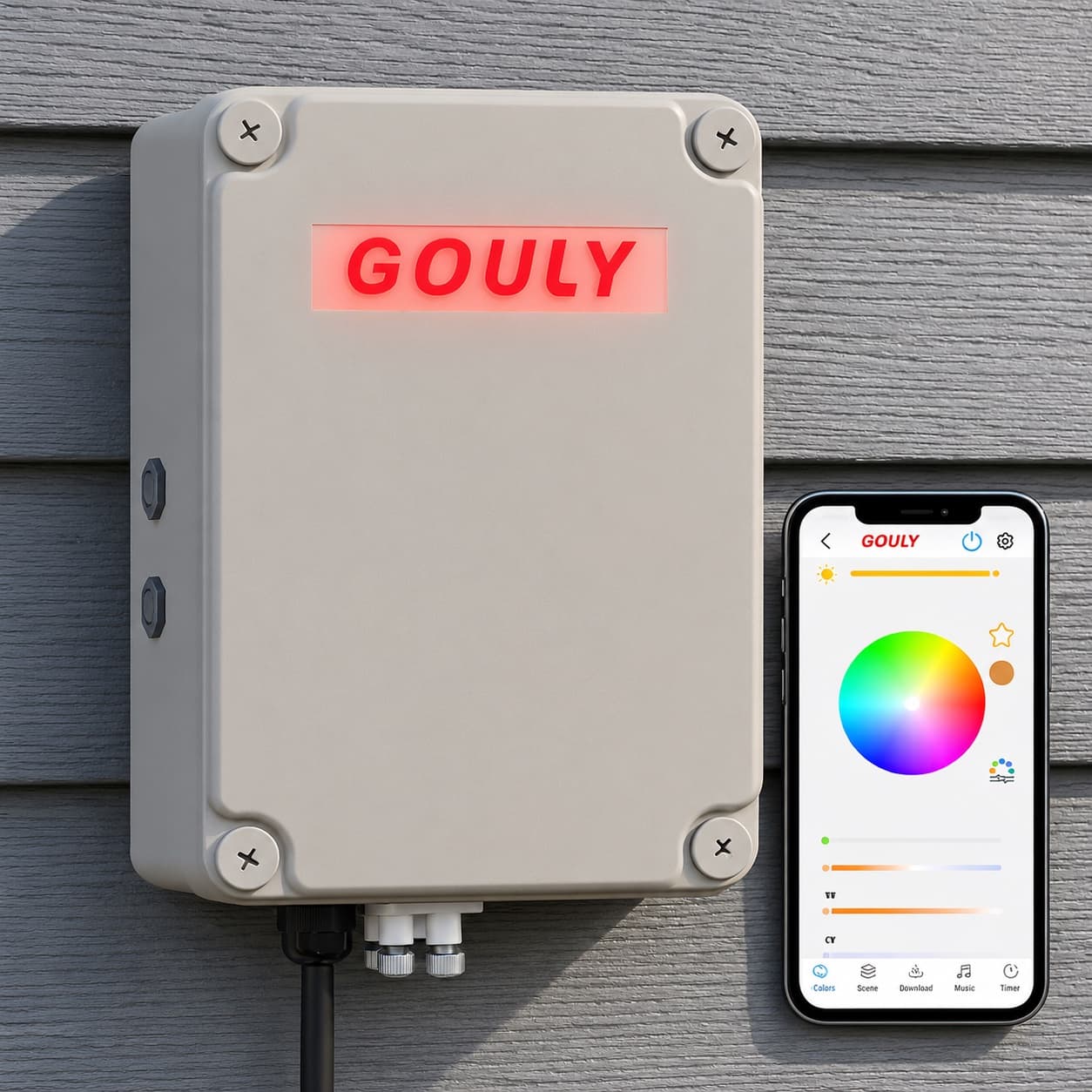
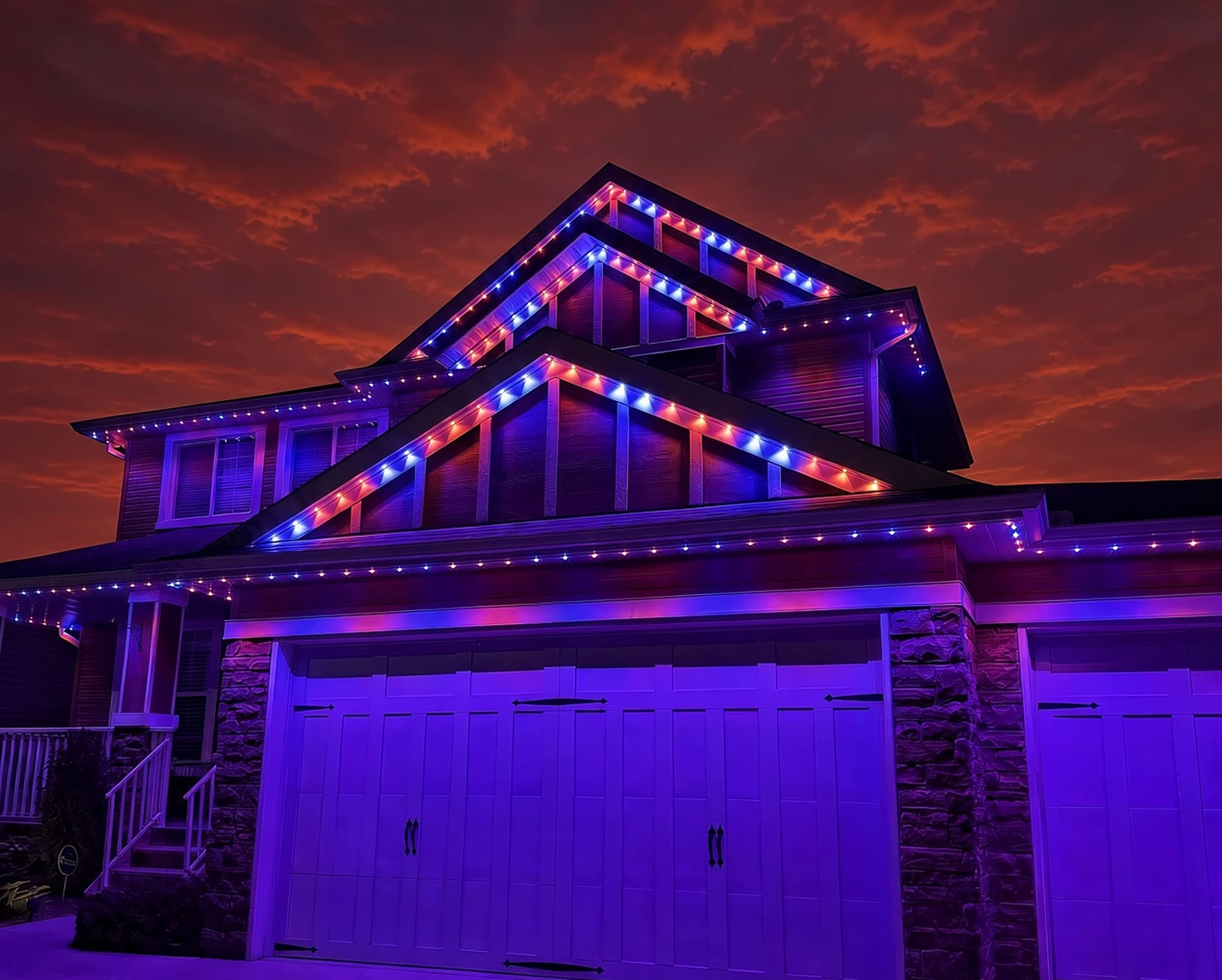
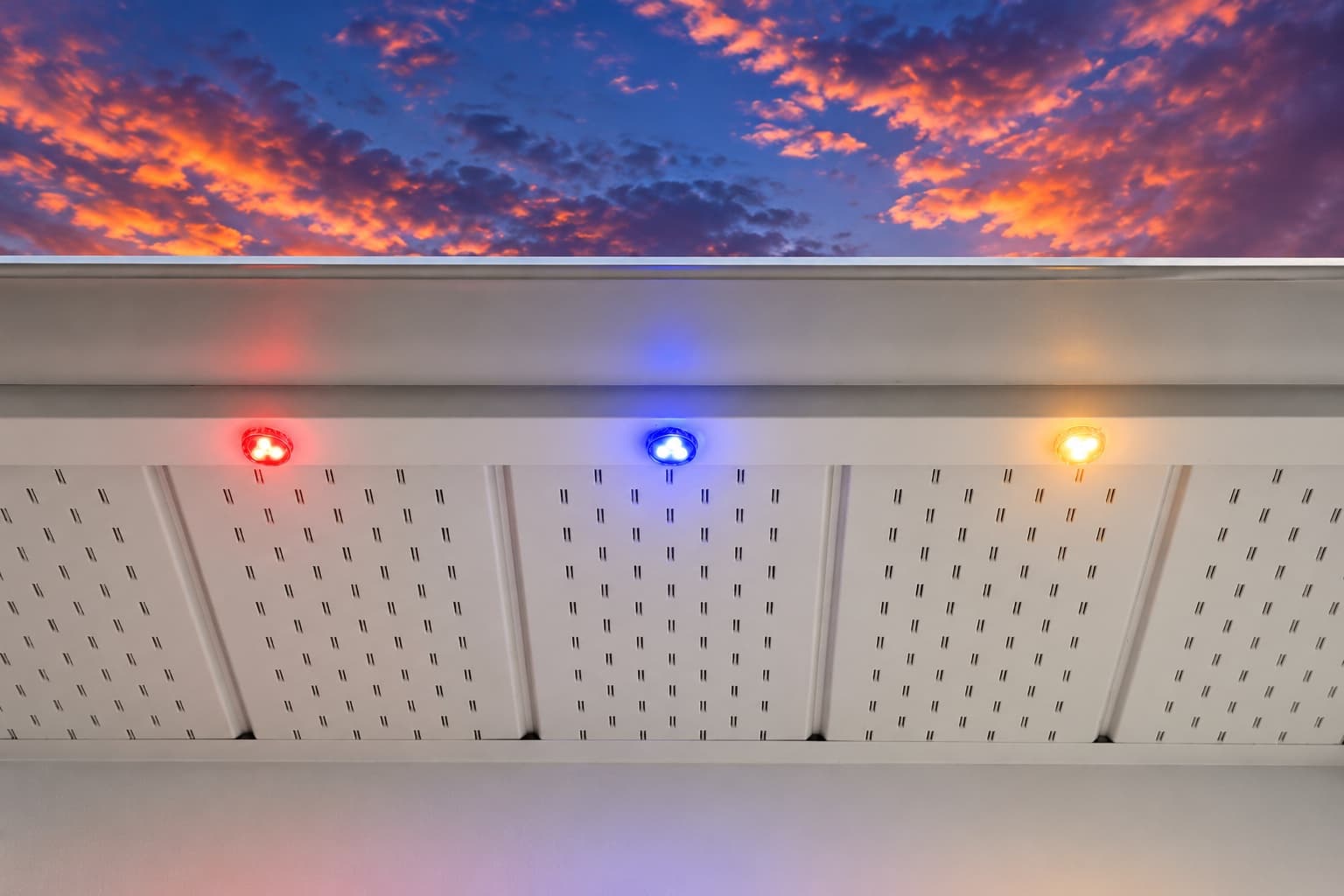
We can assess what you have now, or replace it with a professionally installed GOULY Gen 3 system on one app with 1,000+ designs.
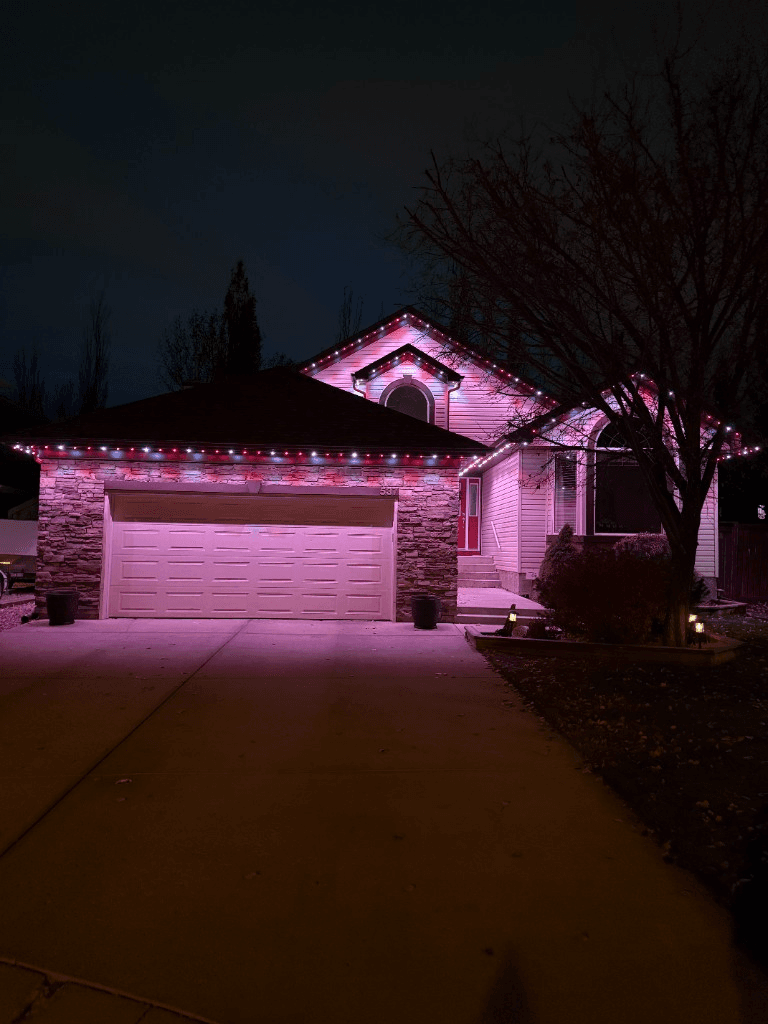
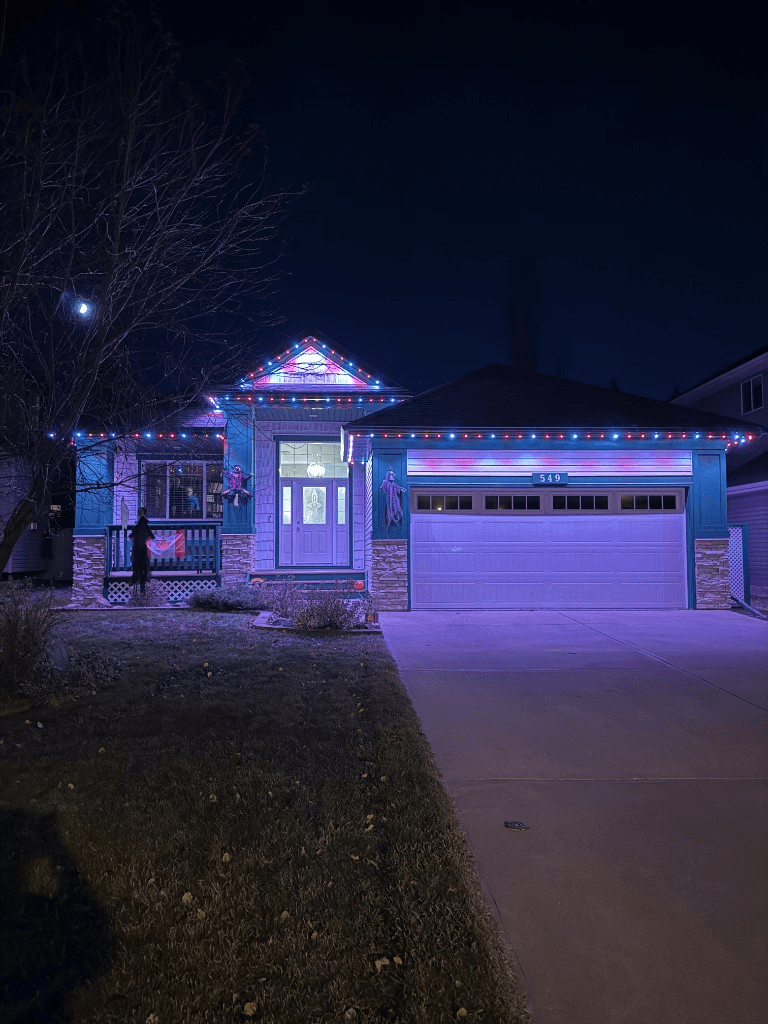
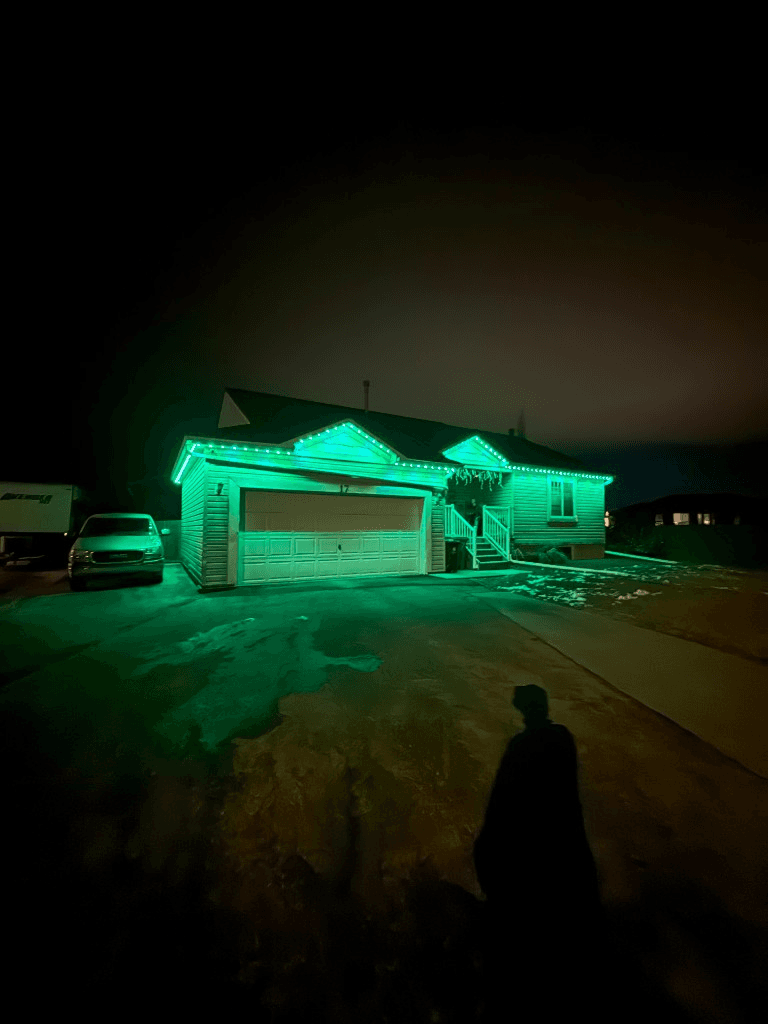
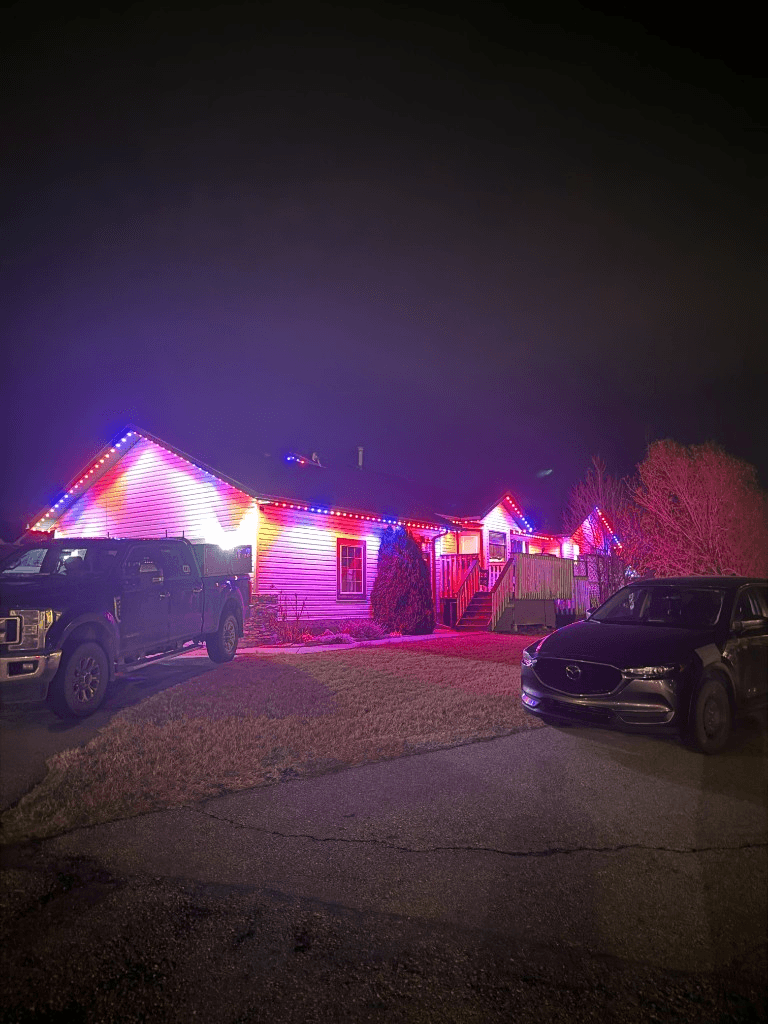
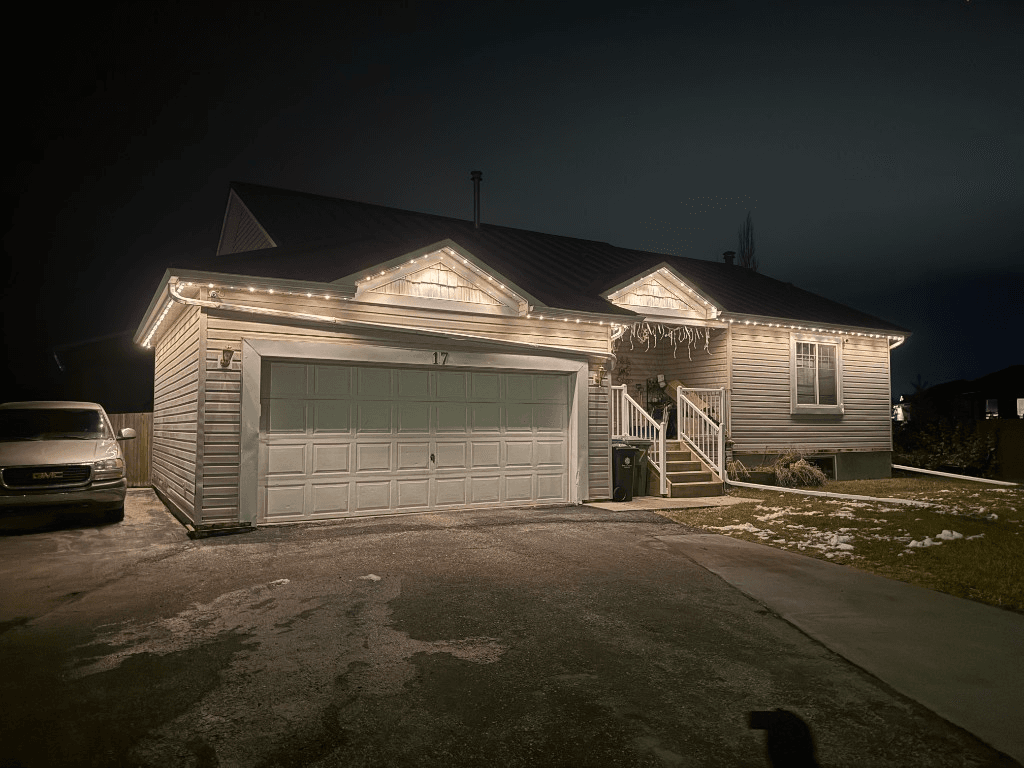 From our gallery
Your Nanoleaf Permanent Outdoor Lights are stuck on "Connecting to your Nanoleaf device", show as unreachable, or will not join your smart home. Nanoleaf's outdoor lights can be set up over Wi-Fi, Bluetooth or Matter, and most connection trouble comes back to the Wi-Fi band, the pairing method or a pairing attempt that half finished.
This guide covers the fixes in the order most likely to work, based on Nanoleaf's support articles and what owners report. Some steps differ between Nanoleaf's outdoor product lines, so where a step depends on your model, check Nanoleaf's own instructions for your exact product.
Tired of fighting the app?
Get a free mockup of your house lit up
Quick checklist before you start
- Check power at the outlet. Exterior GFCI outlets trip after rain or snow melt.
- Stand close to the controller while you set it up.
- Update the Nanoleaf app and your phone.
- Force-close the app and reopen it.
- Make sure your router is broadcasting a 2.4 GHz network.
Stuck on "Connecting to your Nanoleaf device" or "Unreachable"
What users report: setup hangs on the connecting screen, or lights that worked yesterday now show as unreachable.
Fixes, in order:
- Unplug the lights, wait, then plug them back in. Power cycling is the first step Nanoleaf suggests before anything more drastic.
- Check that your phone is on the same home network you are trying to put the lights on.
- Go through the 2.4 GHz section below.
- If Wi-Fi setup keeps failing, try pairing over Bluetooth instead.
- If an earlier pairing attempt failed partway, reset the lights before trying again. See the reset section below.
2.4 GHz Wi-Fi only, and Wi-Fi 6 router quirks
Why it happens: Nanoleaf's connectivity FAQ says its Wi-Fi lights work on 2.4 GHz. Many newer routers broadcast 2.4 GHz and 5 GHz under one network name, and the lights cannot use the 5 GHz half.
Fixes, in order:
- If your router lets you, give the 2.4 GHz band its own name and connect the lights to that. Our 2.4 GHz setup guide explains how.
- Enter the Wi-Fi password carefully. Owners report Wi-Fi setup failing when the details were slightly off, then working over Bluetooth.
- Some owners report trouble on Wi-Fi 6 routers. This is not something Nanoleaf has confirmed, but if you have a Wi-Fi 6 router and nothing else works, try the 2.4 GHz band on its own with any newer features your router offers for that band turned off.
Pair over Bluetooth when Wi-Fi setup keeps failing
Nanoleaf's outdoor lights also support Bluetooth. Owners in Nanoleaf communities report that pairing over Bluetooth worked when Wi-Fi setup kept failing. Keep Bluetooth on, give the app permission to use it and stay close to the controller while you pair.
Matter: the 15-minute pairing window
Nanoleaf's Matter instructions say pairing has to start within about 15 minutes of the lights being powered on. If you are not already paired and the window has passed, unplug the lights and plug them back in to open it again, then start pairing right away.
Nanoleaf also says that if an earlier pairing attempt failed, you may need to reset the lights before Matter pairing will work.
Adding a second smart home system with multi-admin
If the lights already work in one system and you want to add them to another, such as Apple Home, Google Home or Alexa, Nanoleaf's instructions say to open pairing again from the system that already controls them. This is the Matter multi-admin feature. Trying to pair them from scratch in the second app usually fails.
Hub or Thread border router offline
Nanoleaf's connectivity FAQ says that for Thread or Matter control, your smart home hub needs to be online and up to date. Retail listings for the outdoor lights also say a Matter hub is needed to control them from Apple, Google or Amazon systems. If the lights show unreachable in your smart home app but work in the Nanoleaf app, check the hub first: power, internet connection and software updates.
Run length and power
Nanoleaf Permanent Outdoor Lights have a maximum run length when you add extensions, and reviews report a set limit. We could not confirm the exact figure from Nanoleaf's own pages, so check your product manual. If the far end of a long run is dim, wrong in colour or will not respond, you may be past the limit or have a loose connection between sections.
How to reset Nanoleaf outdoor lights
Try a power cycle first. If that does not help, Nanoleaf's reset guide for its outdoor lights describes this process:
- With the lights powered on, hold the power button on the controller for about 10 seconds.
- Wait for the lights to flash red three times.
- Pair the lights again in the app.
A reset erases the pairing and network information, so you will set them up again from the start. That guide is written for Nanoleaf's outdoor light range, so confirm the steps for your exact model in the Nanoleaf app or with Nanoleaf support before you do it.
Local install and support
Number One Lights installs and supports GOULY permanent lights in Calgary, Chestermere and Strathmore
You get a local warranty and local service from the team that put your lights up. Start with a free mockup of your house lit up.
Getting support
Nanoleaf has a support site with setup, connectivity and reset articles for its outdoor lights. Go in with your exact product name, how you are trying to connect (Wi-Fi, Bluetooth or Matter), which smart home system you use, what the controller lights are doing and what you have already tried.
When troubleshooting is not worth it
If you have split your Wi-Fi bands, tried Bluetooth, reset the lights and paired again, and they still drop off every few weeks, the problem is usually not a setting you missed. That is when it makes sense to have someone look at the whole system.
| Feature | Many Competitors | GOULY Gen 3 |
|---|---|---|
| App | Nanoleaf app and Matter | GOULY app with 1,000+ designs |
| Mounting | Depends on your install | Aluminum track fastened to your fascia |
| Cold rating | Check your hardware | Rated -40°C to +50°C |
| Install | Usually DIY | Professionally installed |
| Warranty | Manufacturer warranty | Transferable Warranty plus workmanship coverage |
| Support | Nanoleaf support | Local team in Calgary with a real phone number |
Nanoleaf Permanent Outdoor Lights vs professionally installed lights
We install permanent lights across Calgary, Chestermere, Strathmore and area. If your current lights keep failing, we can come out, look at what is actually there and tell you straight whether it is worth fixing. If it is not, we replace it with the GOULY Gen 3 system:
- Controlled from the GOULY app, with 1,000+ designs and holiday schedules.
- Mounted in aluminum track, fastened to your fascia. See the system.
- Rated for Alberta cold, -40°C to +50°C.
- Professionally installed, with a Transferable Warranty plus workmanship coverage.
What to do next
If the fix was small, a tripped outlet, a 5 GHz network or a missed pairing window, the steps above should have you back up tonight.
If it keeps coming back, get a free quote and a team member will look at your home virtually and send a clear quote. No pressure, no surprises.
Done troubleshooting?
See your house lit up with a free mockup
We design, install and support GOULY permanent lights in Calgary, Chestermere and Strathmore. Get your free mockup and quote, or text or call us with any question.
Frequently asked questions
Why won't my Nanoleaf outdoor lights connect?
The most common causes are a 5 GHz or combined Wi-Fi network, a missed Matter pairing window or an earlier pairing that failed partway. Connect to a 2.4 GHz network, try pairing over Bluetooth if Wi-Fi keeps failing, and reset the lights if a previous attempt did not finish.
How do I reset Nanoleaf Permanent Outdoor Lights?
Try a power cycle first. Nanoleaf's reset guide for its outdoor lights describes holding the controller's power button for about 10 seconds with the lights on, until they flash red three times, then pairing again. A reset erases pairing and network details, so confirm the steps for your exact model with Nanoleaf first.
Do Nanoleaf outdoor lights work on 5 GHz?
Nanoleaf's connectivity FAQ says its Wi-Fi lights work on 2.4 GHz. If your router combines both bands under one name, give the 2.4 GHz band its own name and connect the lights to that.
Do Nanoleaf outdoor lights need a hub?
Not for the Nanoleaf app over Wi-Fi or Bluetooth. Retail listings say a Matter hub is needed to control them from Apple, Google or Amazon systems, and Nanoleaf says that hub needs to be online and up to date.
Why does my Nanoleaf say unreachable?
Unreachable usually means lost power, a Wi-Fi change or an offline smart home hub. Check the outlet, power cycle the lights, confirm they are on a 2.4 GHz network and check your hub if they only show unreachable in your smart home app.
How long can Nanoleaf outdoor lights run?
Nanoleaf Permanent Outdoor Lights have a maximum run length with extensions, and reviews report a set limit. We could not confirm the exact figure from Nanoleaf's own pages, so check your product manual before adding sections.
Questions before you book?
Visit our FAQ page
Get quick answers on Gen 3 Lighting, pricing, install timelines, app setup, warranty, and what to expect on install day.