Tired of fighting the Keepsmile app?
Upgrade to a permanent GOULY system
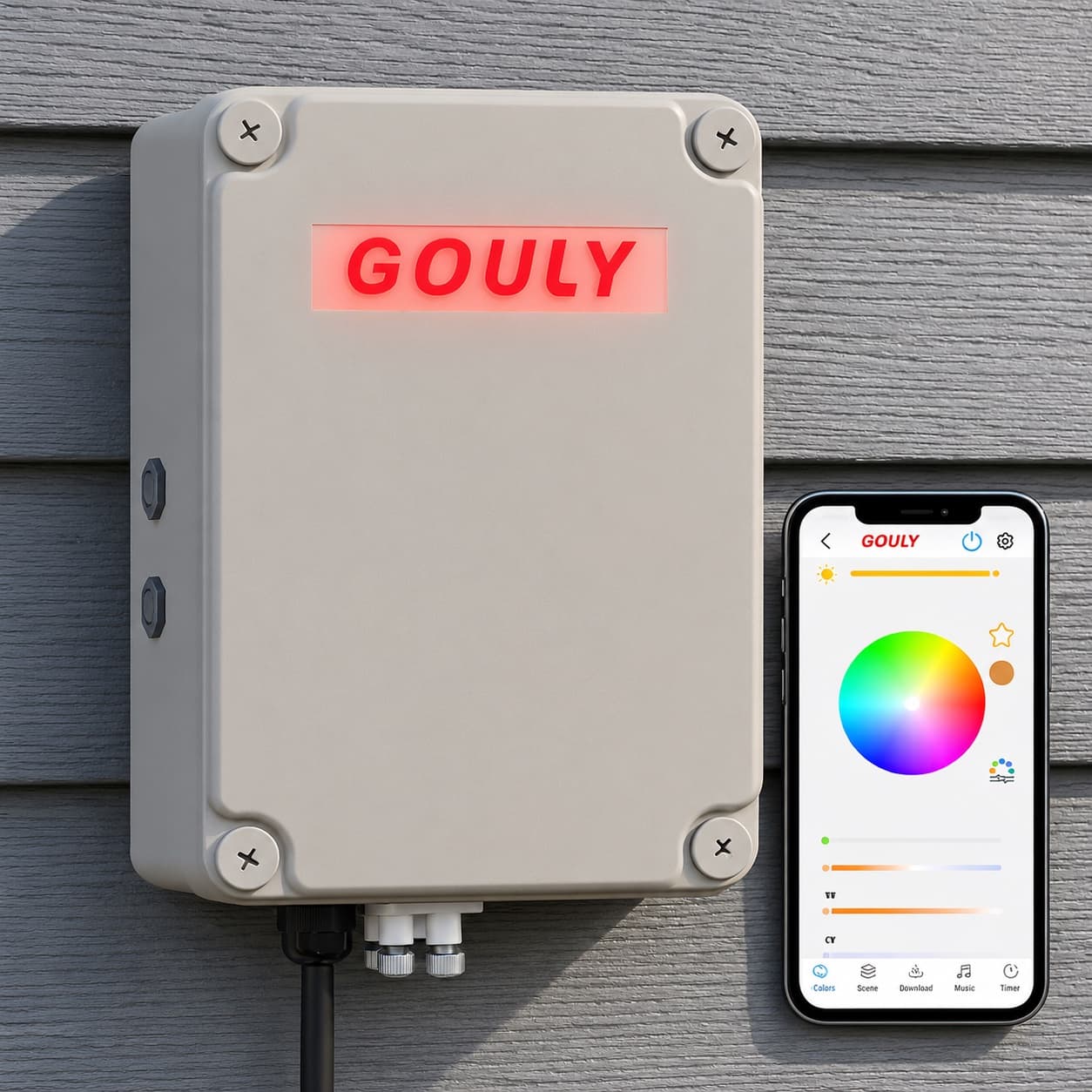
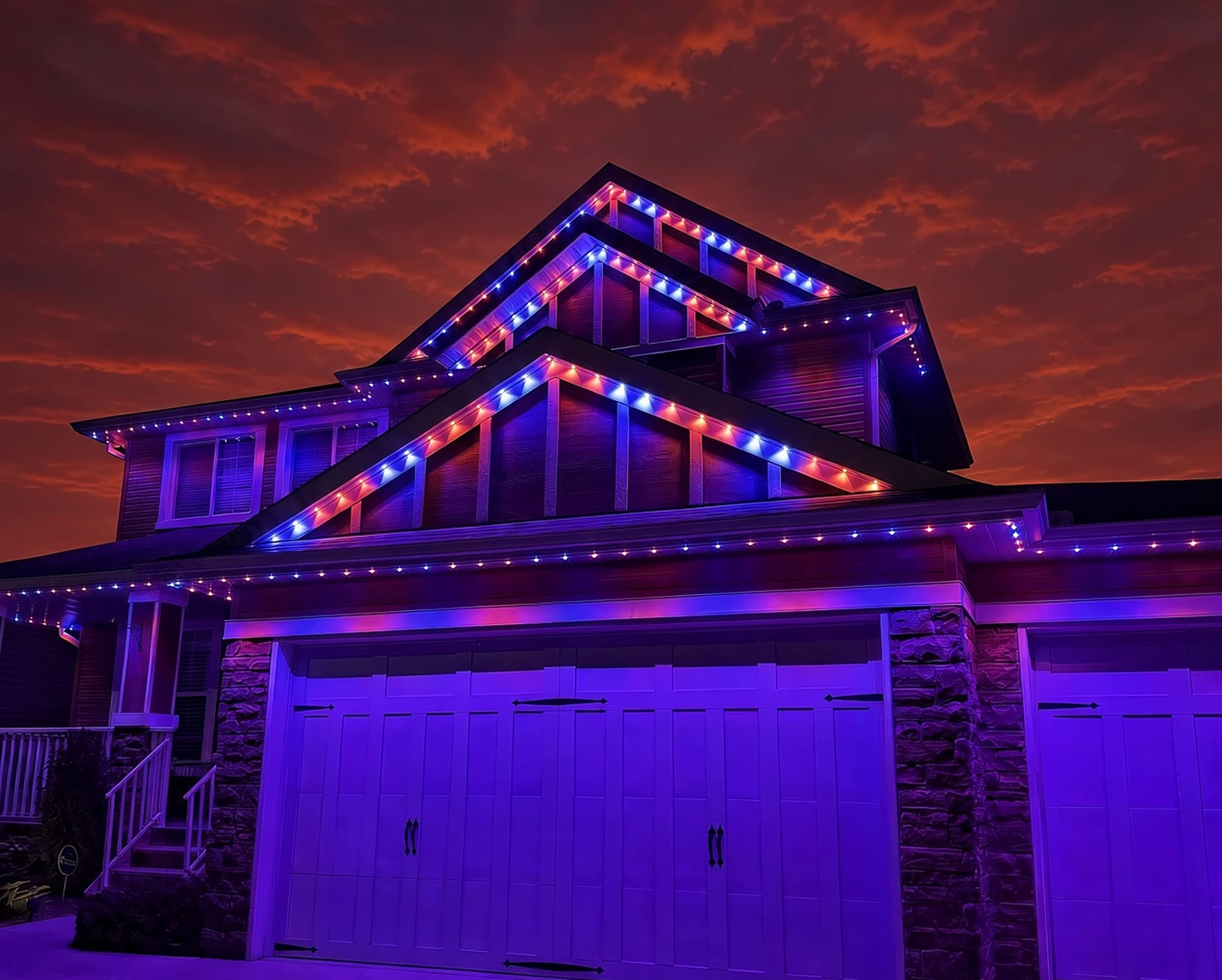
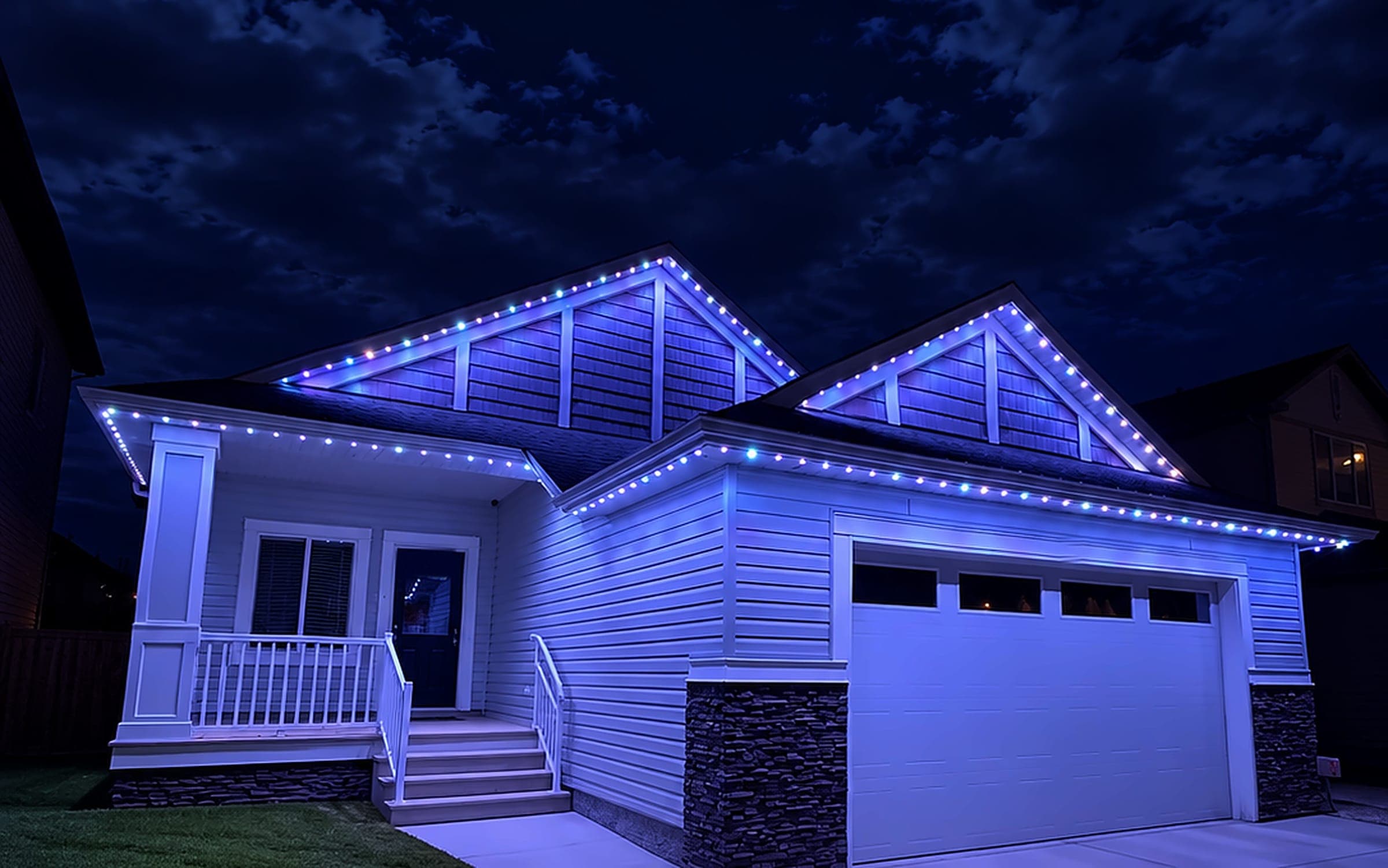
We can assess what you have now, or replace it with a professionally installed GOULY Gen 3 system on one app with 1,000+ designs.
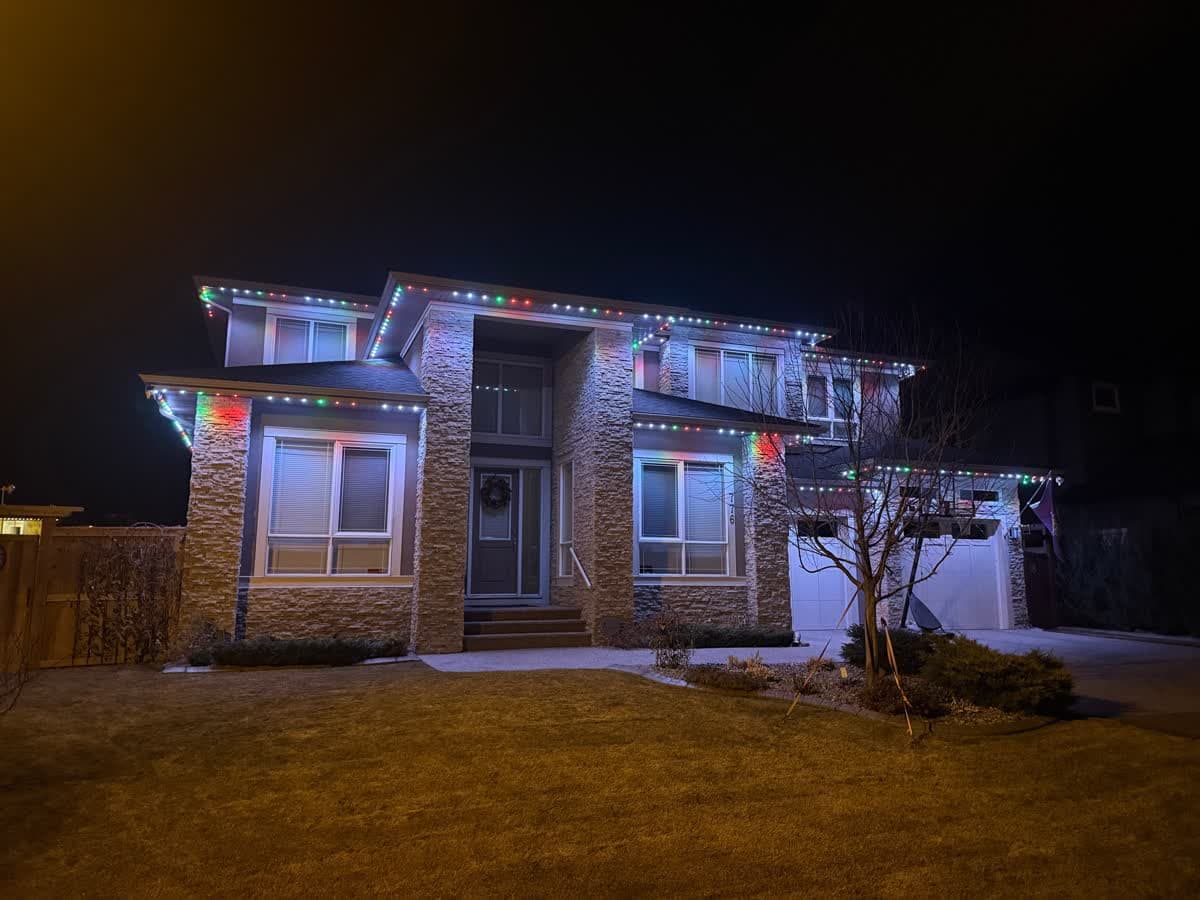
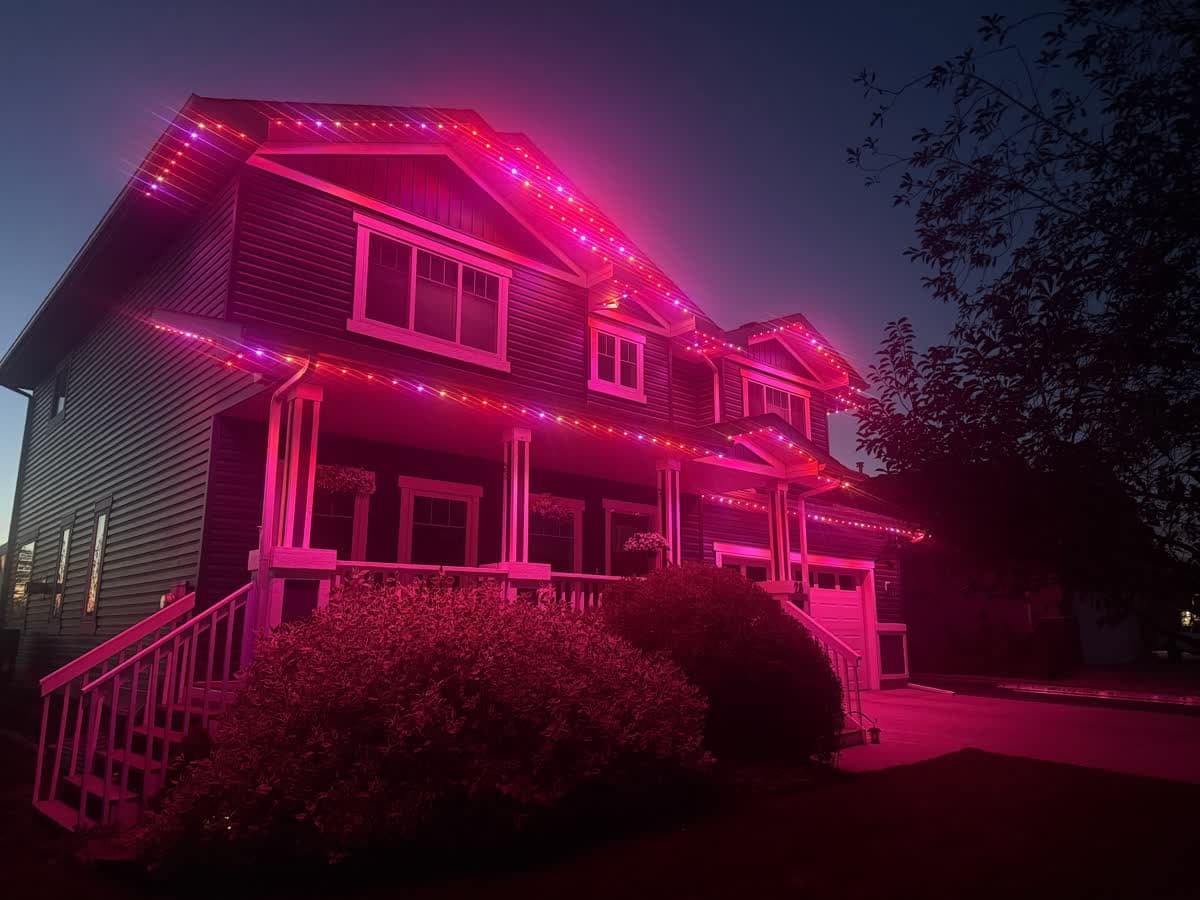
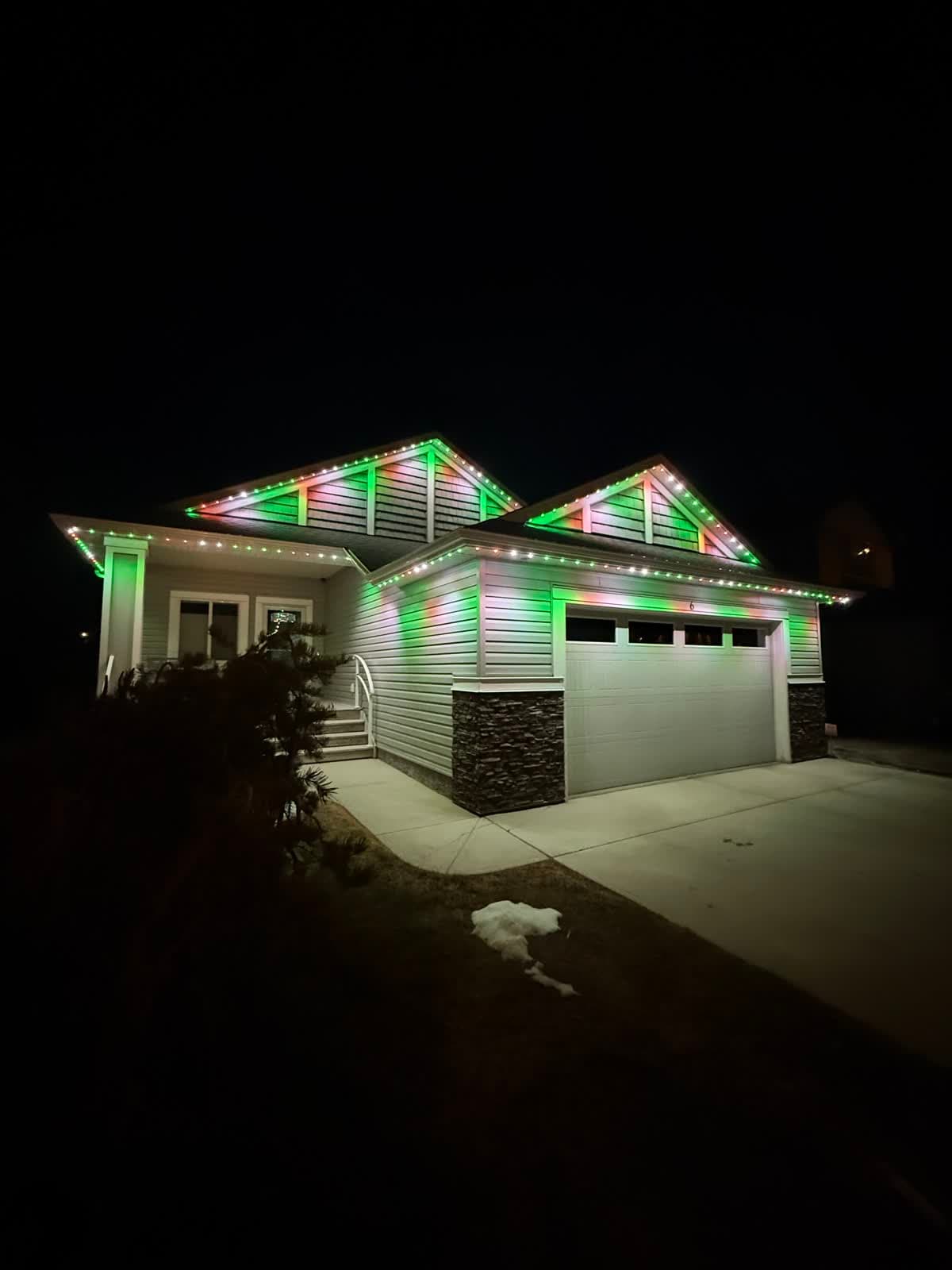
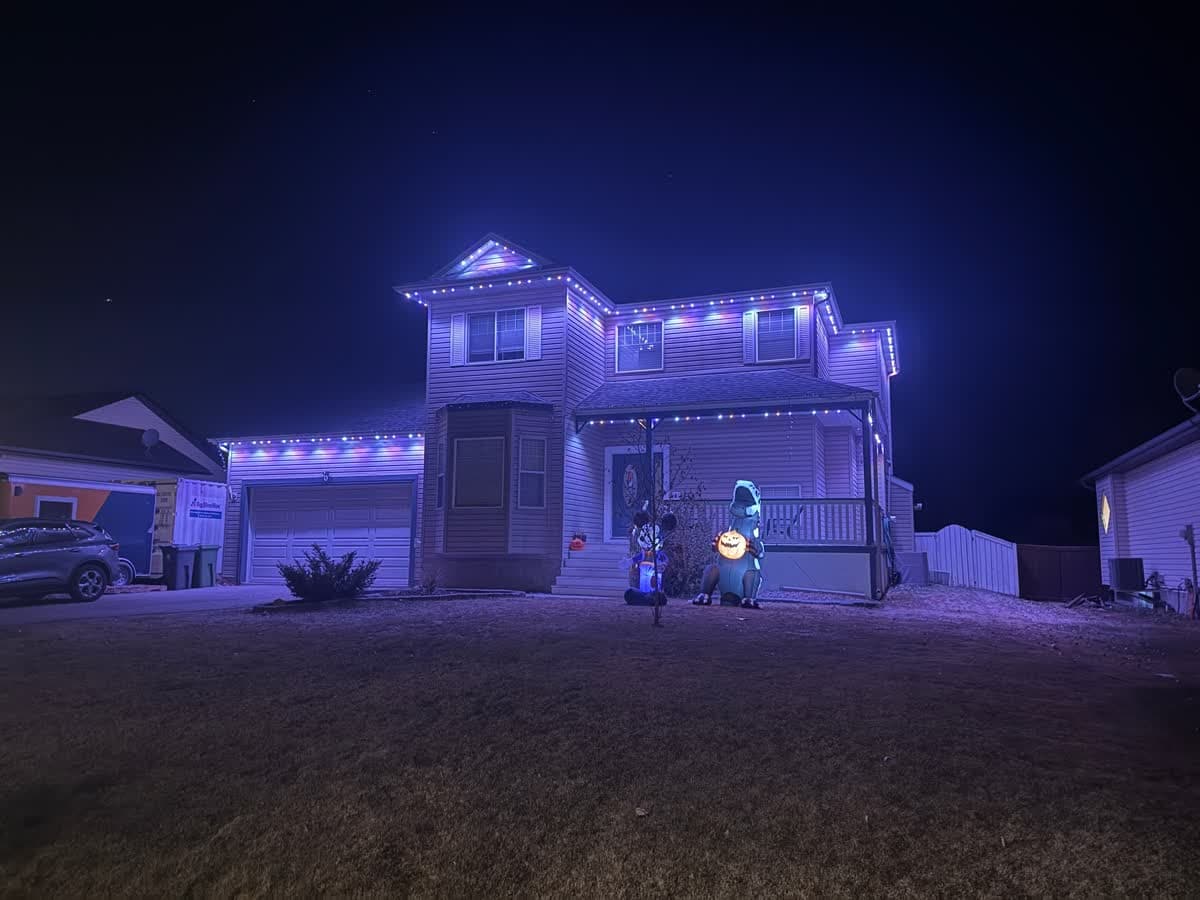
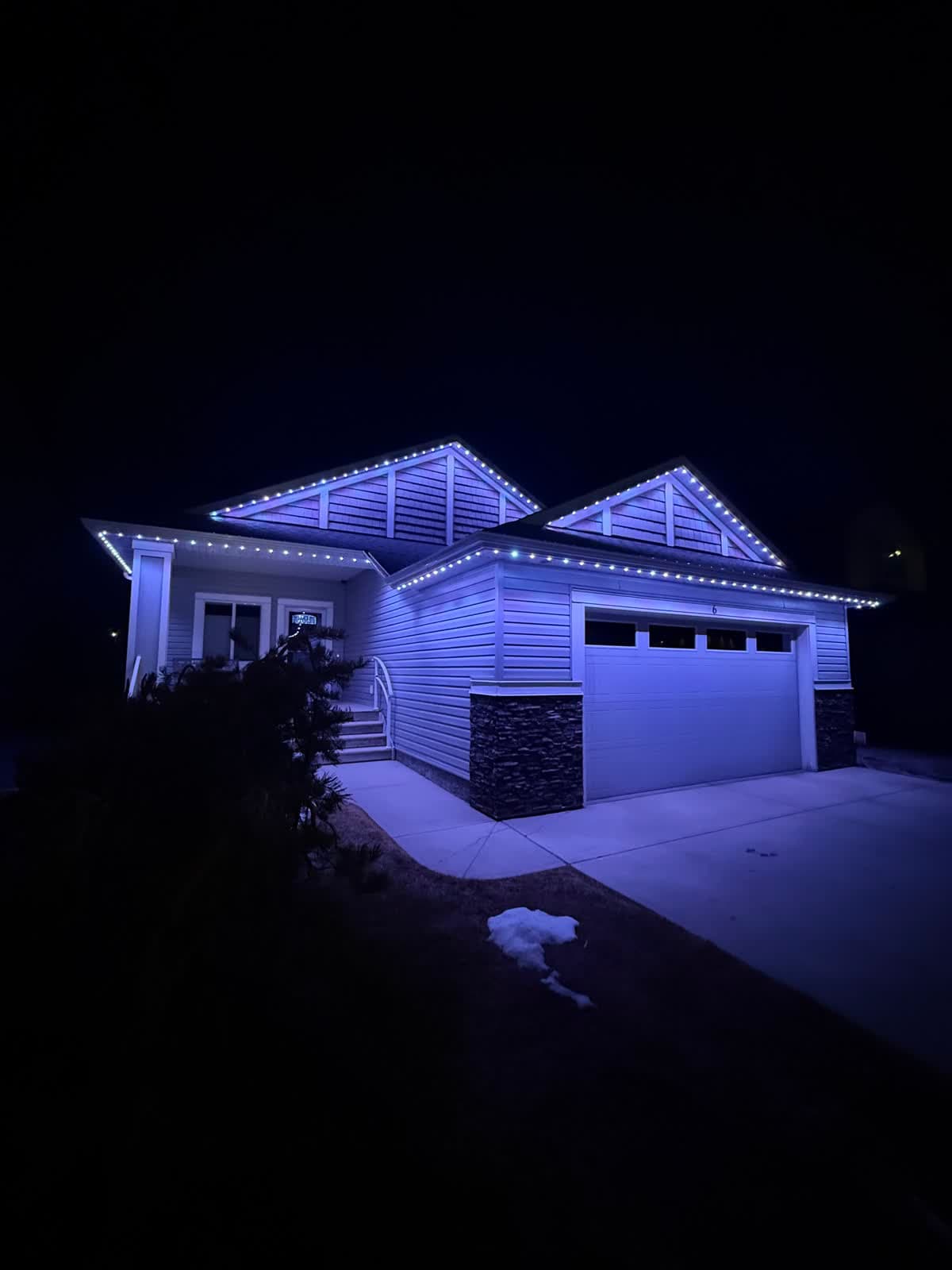 From our gallery
You open Keepsmile and it says there are no devices. Or setup stops with "Network unable", or the remote that came with your LED strip quit working after an update. Keepsmile is the app sold with a range of LED strip lights, and most problems come back to Bluetooth range, which kind of controller you have, or an out-of-date app.
This guide covers the fixes in the order most likely to work. Keepsmile does not publish an official help centre, so we rely on what the Keepsmile App Store listing and its reviewers report, plus how these controllers generally behave. Where we could not confirm a step, we keep it general.
Tired of fighting the app?
Get a free mockup of your house lit up
Bluetooth Keepsmile vs Wi-Fi Keepsmile: which do you have?
Most Keepsmile strips are controlled over Bluetooth, straight from your phone. Some sellers also list Keepsmile models that connect over Wi-Fi. The fixes are different, so check the box, the listing you bought from or the controller label first.
- Bluetooth model: your phone needs to be close to the controller. Your router has nothing to do with it.
- Wi-Fi model: the controller joins your home network, so router settings matter.
We could not confirm whether every Wi-Fi model uses the same Keepsmile app, so if setup looks nothing like what is described here, check the manual that came in the box.
Quick checklist before you start
- Check the strip has power. If the remote turns it on, the strip and power supply are fine.
- Stand close to the controller box while you connect.
- Update the app from the App Store or Google Play.
- Turn Bluetooth off and back on, and check the app is allowed to use it.
- Force-close the app and reopen it. If nothing changes, delete and reinstall it.
Move closer: Bluetooth range limits
Why it happens: Control is over Bluetooth, which has a short range. App Store reviewers report the app not working when the phone was too far from the lights. Walls, floors and metal shorten the range further.
Fixes, in order:
- Stand in the same room as the controller box.
- Check the app has Bluetooth permission in your phone's settings. On Android, also allow Location or "Nearby devices", since many Android versions need that to scan for Bluetooth devices.
- Connect from inside the app, not from your phone's Bluetooth settings.
- If someone else in the house has the app open and connected, ask them to close it. Bluetooth strip controllers generally take one phone at a time.
"No devices" after months of working
What users report: Some reviewers say the app suddenly showed no devices after working fine for months.
Fixes, in order:
- Update the app.
- Close the app, unplug the strip's power supply for several seconds and plug it back in.
- Restart your phone, then reopen the app next to the controller.
- Delete and reinstall the app, then add the strip again.
- Try a different phone. If it connects there, the problem is on the first phone.
"Network unable" during setup (Wi-Fi models)
Reviewers report a "Network unable" message during setup. On Wi-Fi controllers like these, the usual causes are general Wi-Fi ones:
- 2.4 GHz network. Most low-cost Wi-Fi LED controllers only join 2.4 GHz. If your router combines both bands under one name, give the 2.4 GHz band its own name. Our 2.4 GHz setup guide explains how.
- Simple password. Very long passwords or unusual special characters can trip up cheap controllers. Type the password carefully.
- Stand close to the router and the controller during setup.
We could not confirm these steps from Keepsmile directly, so treat them as general Wi-Fi checks rather than official instructions.
Remote or wall switch stopped working after a firmware update
What users report: One reviewer said the remote and wall switch stopped working after a firmware update, and the remote could not be unpaired. The developer replied that the app had fixed the issue.
Fix: update the Keepsmile app to the latest version, then reconnect to the strip and test the remote again.
Remote needs line of sight
A reviewer noted the remote needs to be pointed at the controller. If the remote seems dead, point it straight at the controller box with nothing in the way, and check the remote's battery.
Lights paired to another app first: reset before re-pairing
If the strip was set up in a different app before, it may not show up cleanly in Keepsmile. Power-cycle it and try again. If your controller has a reset button or the manual describes a reset, do that before adding it to Keepsmile.
Music mode not working
Music mode listens through your phone's microphone, so the app needs microphone permission. Check it in your phone's settings, keep the phone near the music and keep the app open on the music screen.
How to reset Keepsmile lights
Keepsmile does not publish an official reset procedure, and it likely varies by controller. The safe general step is a power-cycle: unplug the power supply for several seconds, plug it back in, then reconnect from inside the app. If your box came with a manual that describes a reset, follow that.
Is the Keepsmile app safe?
We cannot vouch for any third-party app's data handling. On the App Store, Keepsmile is sold by Shenzhen Youzhida Technology Co., Ltd. Check the seller name, read the privacy details on the listing, and only allow the permissions it needs: Bluetooth, Location on Android for scanning, and the microphone if you use music mode.
Local install and support
Number One Lights installs and supports GOULY permanent lights in Calgary, Chestermere and Strathmore
You get a local warranty and local service from the team that put your lights up. Start with a free mockup of your house lit up.
Getting support
There is no official Keepsmile support site. Your best contacts are the seller you bought the strip from and the developer contact on the app listing. Go in with your phone model, whether your strip is Bluetooth or Wi-Fi, what the controller is doing and what you have already tried.
When troubleshooting is not worth it
If you have updated the app, power-cycled the strip, checked permissions and tried another phone, and it still drops out, the controller itself may be the weak link. Strip light kits are built to be cheap, and that is when it makes sense to think about something made to last.
| Feature | Many Competitors | GOULY Gen 3 |
|---|---|---|
| App | Keepsmile over Bluetooth or Wi-Fi | GOULY app with 1,000+ designs |
| Mounting | Adhesive strip | Aluminum track fastened to your fascia |
| Cold rating | Check your strip | Rated -40°C to +50°C |
| Install | Do it yourself | Professionally installed |
| Warranty | Depends on the seller | Transferable Warranty plus workmanship coverage |
| Support | App listing contact | Local team in Calgary with a real phone number |
How Number One Lights can help
We install permanent lights across Calgary, Chestermere, Strathmore and area. If you are done with strip light apps and want lights on your home that just work, we can design and install the GOULY Gen 3 system:
- Controlled from the GOULY app, with 1,000+ designs and holiday schedules.
- Mounted in aluminum track, fastened to your fascia. See the system.
- Rated for Alberta cold, -40°C to +50°C.
- Professionally installed, with a Transferable Warranty plus workmanship coverage.
What to do next
If the fix was small, an app update, standing closer or a quick power-cycle, the steps above should have your lights back tonight.
If you want something permanent outside, get a free quote and a team member will look at your home virtually and send a clear quote. No pressure, no surprises.
Done troubleshooting?
See your house lit up with a free mockup
We design, install and support GOULY permanent lights in Calgary, Chestermere and Strathmore. Get your free mockup and quote, or text or call us with any question.
Frequently asked questions
Why is my Keepsmile app not working?
Most Keepsmile strips are controlled over Bluetooth, so the usual causes are standing too far away, a missing Bluetooth or Location permission, an out-of-date app or another phone already connected. Update the app, stand next to the controller, power-cycle the strip and try again.
How do I connect LED lights to the Keepsmile app?
Turn on Bluetooth, allow the app's Bluetooth permission (and Location or Nearby devices on Android), stand close to the controller and add the strip from inside the Keepsmile app rather than your phone's Bluetooth settings. Wi-Fi models also need a 2.4 GHz network and the correct Wi-Fi password.
Is the Keepsmile app safe?
We cannot vouch for any third-party app's data handling. On the App Store, Keepsmile is sold by Shenzhen Youzhida Technology Co., Ltd. Check the seller, read the privacy details on the listing and only allow the permissions it needs: Bluetooth, Location on Android for scanning, and the microphone for music mode.
Does Keepsmile work over Wi-Fi?
Most Keepsmile strips use Bluetooth, but some sellers list Wi-Fi models. Check the box or controller label. Wi-Fi models join your home network, and low-cost Wi-Fi controllers generally need a 2.4 GHz network and a simple password.
How do I add music to the Keepsmile app?
Music mode listens through your phone's microphone. Allow the app's microphone permission, keep the phone near the music and keep the app open on the music screen.
Is there an alternative to the Keepsmile app?
For an indoor strip, the app the strip was sold with is usually the one it works with. If you want permanent lights on the outside of your home in Calgary, Chestermere or Strathmore, Number One Lights installs and supports the GOULY Gen 3 system, controlled from the GOULY app with local warranty and service.
Questions before you book?
Visit our FAQ page
Get quick answers on Gen 3 Lighting, pricing, install timelines, app setup, warranty, and what to expect on install day.